
How to Connect Your Google Business to Rella

To auto post Google Business posts, events, or offers with Rella, you’ll need to link your Google Business account.
How to Link Your Google Business to Rella
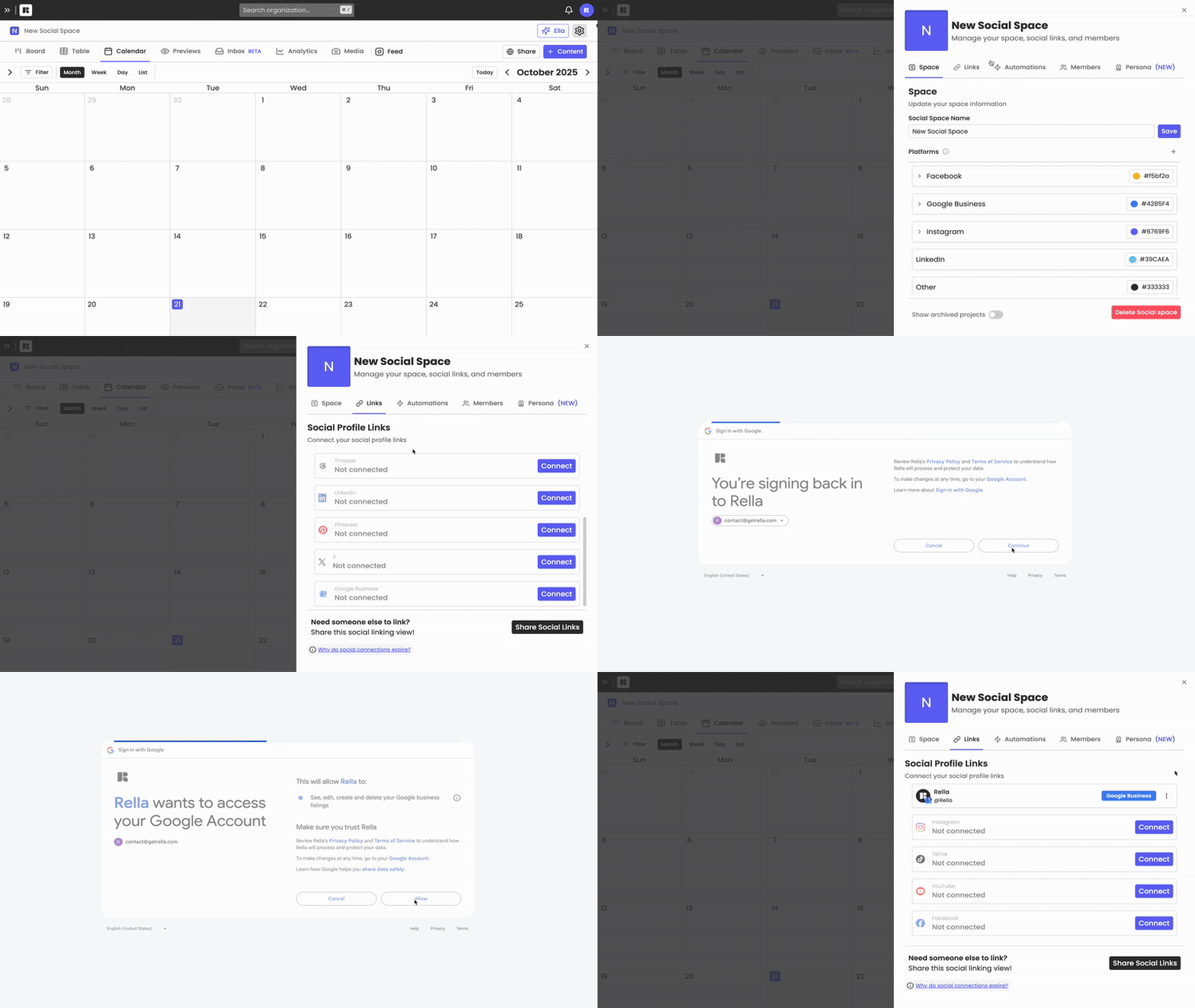
On Rella open your Social Space settings and go to the Links tab.
Next, log in to your Google Business account and confirm the connection.
Troubleshoot & FAQs
Do I need to link my Google Business Account?
Linking a Google Business account to Rella is optional! Unlike most content management tools, Rella does not require account linking in order to plan or schedule posts. However, you’ll need to link an Google Business account if you’re interested in auto posting posts, offers, or events. If you’re not interested in linking an account your click here for more information on posting manually.
Why is my Google Business connection not working?
On Rella, if you don’t see the status update from “Connect” to “Connected” in the Links tab of your Profile settings your Google Business account may not be linked correctly. Please try relinking the account to resolve.
Can I add a CTA button to my post?
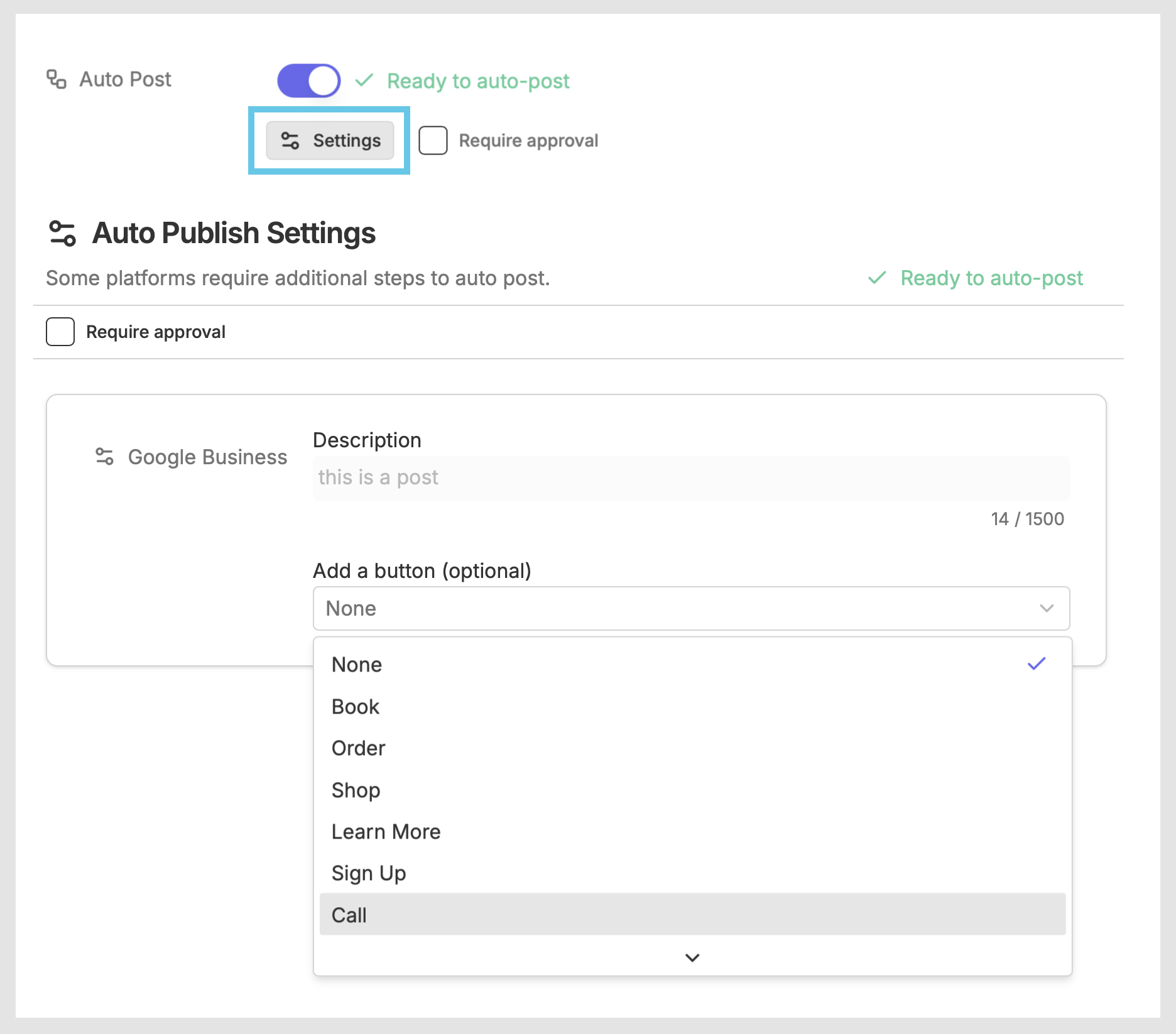
Yes, if “Google Business” is selected as a platform on a Rella post you can add a button underneath the auto post settings. If a phone number is associated with the Google Business profile, you can select “Call.”
Why did my content fail to auto post?
There may be a few reasons your content failed to auto post:
You haven’t enabled the proper Google Business permissions when linking.
You scheduled content for a date/time that has already passed.
Your content does not meet Google Business’s ratio or caption
Google Business content that includes spam or contact information will not auto post. Please utilize the “Add a button” option within the auto post settings on Rella to include contact information.
Here are a few options to resolve your auto posting failures:
Refresh your browser to ensure that you're using the latest version of Rella.
Relink your social connections. You can do this on Rella by going to Settings > Links > and click on the refresh icon.
Reset your auto posts. You can do this on Rella by clicking into a post, turn the auto post toggle off, and then turn the auto post toggle back on. Please make sure your content is scheduled at a future date.
If you’re still having trouble with your Google Business connection or are experiencing auto posting failures please contact us.