
Streamline Rella Workspaces with Claude
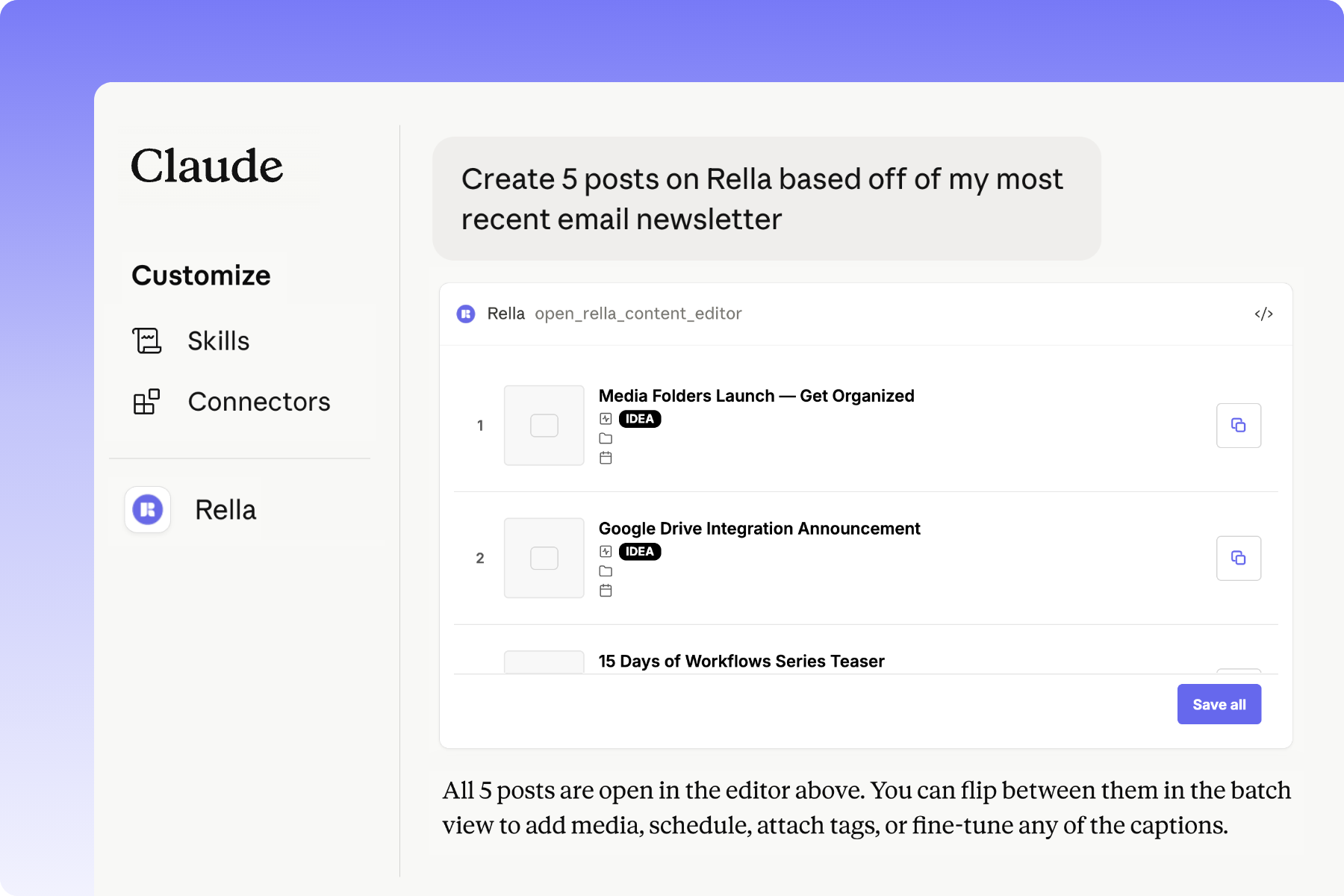
About Rella’s Claude Integration
More than just a chat add-on, it's a hands-on operator for your social workspace. Claude becomes a working teammate that can keep your projects moving without you ever leaving the conversation.
Claude isn't only connected to Rella. With Claude Skills and Connector it can also reach the other tools you use every day (inbox, email marketing platform, CRM, etc.). What once took five tabs can now be accomplished in one chat. For example: "Check my email for client briefs from this week and turn each one into a Rella task."
It's no longer a question of "what can Rella do" but "what can Rella and my entire tech stack do together?". That's the part that gives you your week back.
Every social media marketer’s tech stack and workflow is a little different, which is exactly the point — the real power here is whatever combination of your tools Claude can now coordinate with Rella. Your day-to-day is uniquely yours, and your AI can finally work the way you actually do.
The Claude integration is available on Premium and Premium Plus plans. To upgrade, go to your Organization settings > Billing > Manage subscriptions.
How to Connect
On Rella open your Profile settings > Integrations > Claude. Click Open Claude. Rella copies your connection URL to your clipboard and sends you to Claude's custom connector flow. Connect from Claude Web or Claude Desktop using the same flow
Paste it into Claude. In Claude, paste the copied URL into the Remote MCP server URL field (if it didn't auto-copy, grab it manually from the same Rella panel). Give it a name like "Rella" and confirm.
Sign in and choose your space. Claude opens a Rella sign-in screen. Pick your Organization and the Social Space you want Claude to work in, then click Approve.
Switch back to Claude and start chatting.
Manage connection
At any time, you can switch which Social Space and/or Organization Claude has access to. Switch within your Rella Integration settings or by chatting with Claude.
You can also Disconnect to revoke access at any time.
Adjust preferences to control what Claude is allowed to do from Claude's side. In Claude go to Connectors settings > Tool permissions to set each option to Always allow, Needs approval, or Blocked - so you decide whether Claude can act on its own or check with you first.
Capabilities
Claude can communicate with Rella to manage requests you'd normally do manually. Here’s what Claude can access:
Core capabilities
Draft and create content in your brand voice, with media attached and tags applied
Schedule and reschedule posts across your calendar
Search your content, tasks, media, notes and tags by keyword or filter
Pull analytics and ask Claude to tell you what they actually mean
Manage projects, statuses, tasks, and notes without opening another tab
Upload media from your device into your Rella gallery, then attach it to content
View Rella content in Claude by asking “Take me to the editor”
How Claude Enhances Rella
Visualize analytics: Turn performance and analytics data into charts, dashboards, or graphics
Web search + content creation: Research trends or current events, then draft posts informed by them
Bulk drafting: Generate multiple content variants or a full content calendar in one pass
Document generation: Export analytics or content plans into Word, Excel, PDF, or slide decks
Cross-tool workflows: Combine media uploads, content drafting, tagging, and scheduling into a single guided flow
Caption + copywriting: Use Claude's writing to refine captions, hashtags, and notes before saving to Rella
How to Prompt Claude
Claude does its best work when you give it something to work with - context, a goal, a direction. Think of it like briefing your sharpest team member: the clearer the brief, the better the output.
Pro tip: ask Claude to open the editor to view Rella content. You'll get a visual of what Claude has built so you can review and adjust without guessing.
Heads up: Claude doesn't have access to your brand voice data in Rella. If you want Claude to write in your brand voice, ask Ella for a brand voice breakdown and paste it into Claude as part of your prompt.
Frequently asked questions
Do I need to be technical to set this up?
Not at all. If you can copy a URL once and click "Approve," you're done. After that, you just talk to Claude the way you already do - no code, no setup files, nothing to maintain.
Can I use this on mobile?
Yes. Claude Desktop and Claude Web both work with Rella, so you can manage your workspace from any device where Claude is installed. The connect flow is identical, and you only set it up once per Claude account.
Can my team access my Claude connection?
If you have multiple team members within your Rella Organization, each member will need to connect the Rella Organization to their own Claude account.
Will Claude perform actions without approval?
Claude's Rella tools require your approval before they act, and you can block options entirely under Claude’s Tool permissions within the connector settings.
Claude also can't toggle auto-post on, so it won't accidentally publish anything on your behalf.
Anything Claude schedules shows up in your Rella calendar before it goes live, and the integration respects your existing approval settings. Always give a clear prompt and review what it builds before it ships.
Does Claude have access to my Ella persona?
No,your brand voice data lives in Rella and isn't exposed to Claude. To get on-brand output, ask Ella for a brand voice breakdown, then paste it into Claude as context for your prompt.
Does Rella’s Claude integration use Ella credits?
No, chatting with Claude doesn't use any of your Ella credits. The conversation runs on your Claude plan, so it draws from your Claude usage instead.