Manage Spaces in One View
What are Dashboards?
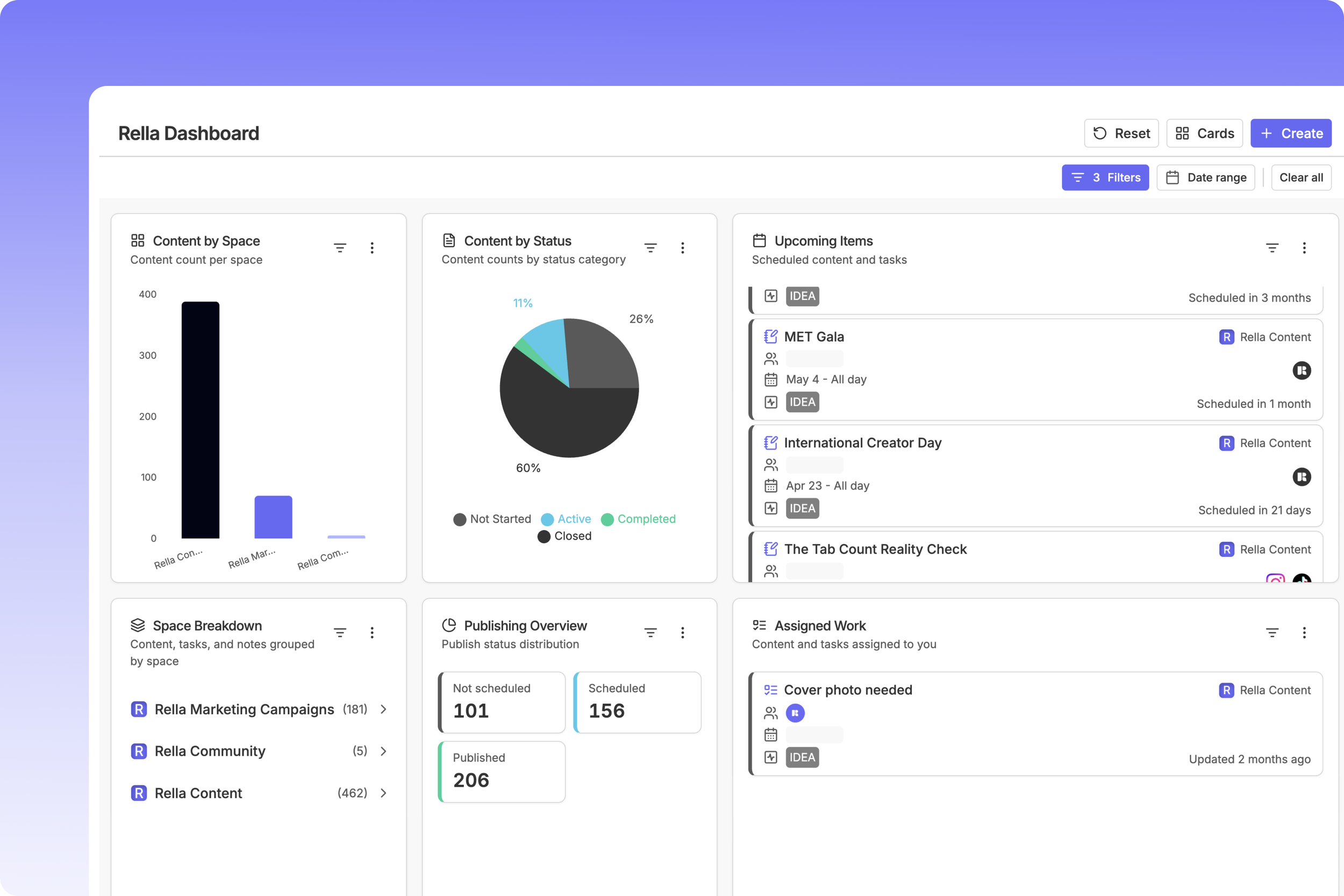
Managing multiple Social Spaces and team members means a lot of switching between views just to get a clear picture of what's happening. Dashboards exist to provide a single, customizable home base where all of your data comes together.
Your dashboard is made up of cards; each card surfaces a specific type of data. Access an Organization’s dashboard in the top left of the Social Space menu.
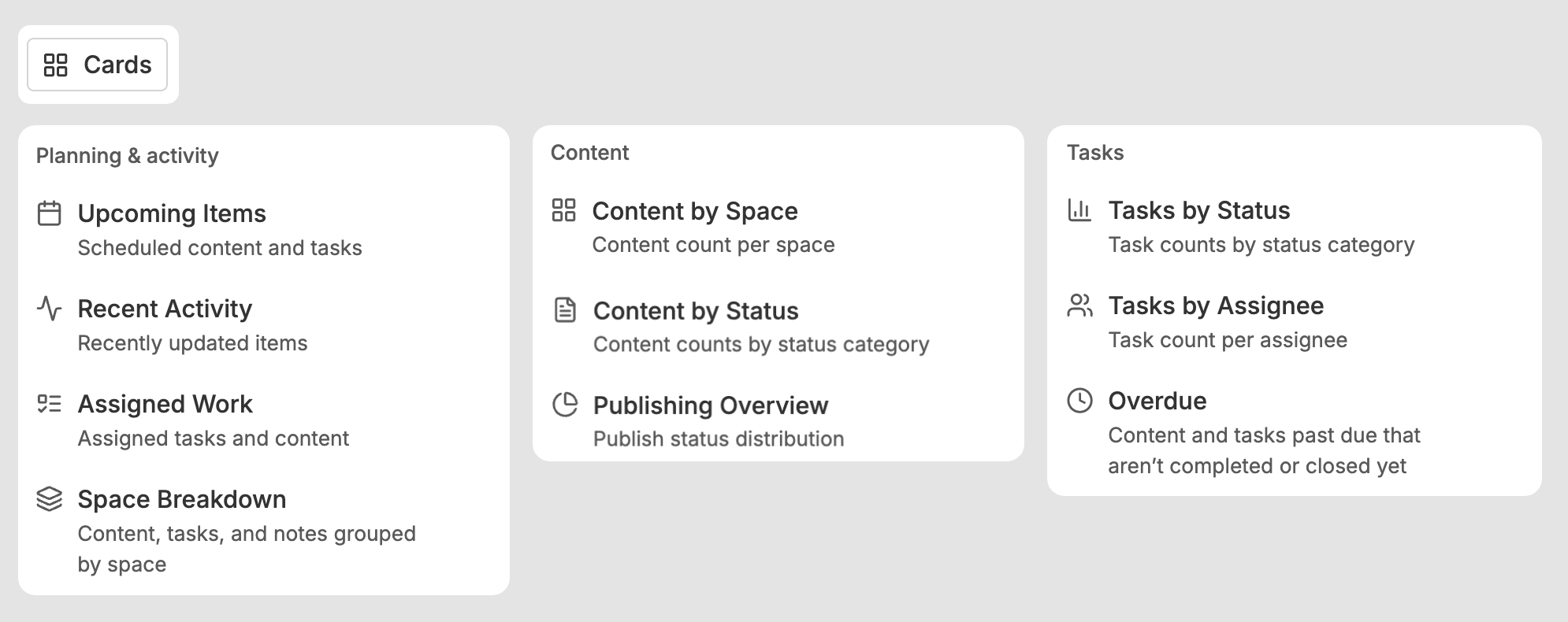
By default, each dashboard includes:
Upcoming Items: Scheduled content and tasks.
Recent Activity: A live feed of recently updated items across your spaces.
Assigned Work: Content and tasks currently assigned to you, across all spaces.
Content by Space: A total of items organized by social space.
Content by Status: A breakdown of content by status category.
Publishing Overview: A distribution view of Not Scheduled, Scheduled, and Published.
Tasks by Status: A total of tasks by statuses.
Tasks by Assignee: An overview of tasks broken down per team member.
Overdue: Tasks and content that have passed their due date.
Space Breakdown: A total count of content, tasks, and notes grouped by space.
How to Customize
Your dashboard is built around the way you work and you have full control over how it looks.
Rearrange cards by dragging them into the order that makes the most sense for your workflow.
Resize cards by accessing the corner of any card and dragging to the size you need. Whether you want a card to span the full width or sit neatly in a column, the layout is yours to define.
Dashboard Filters
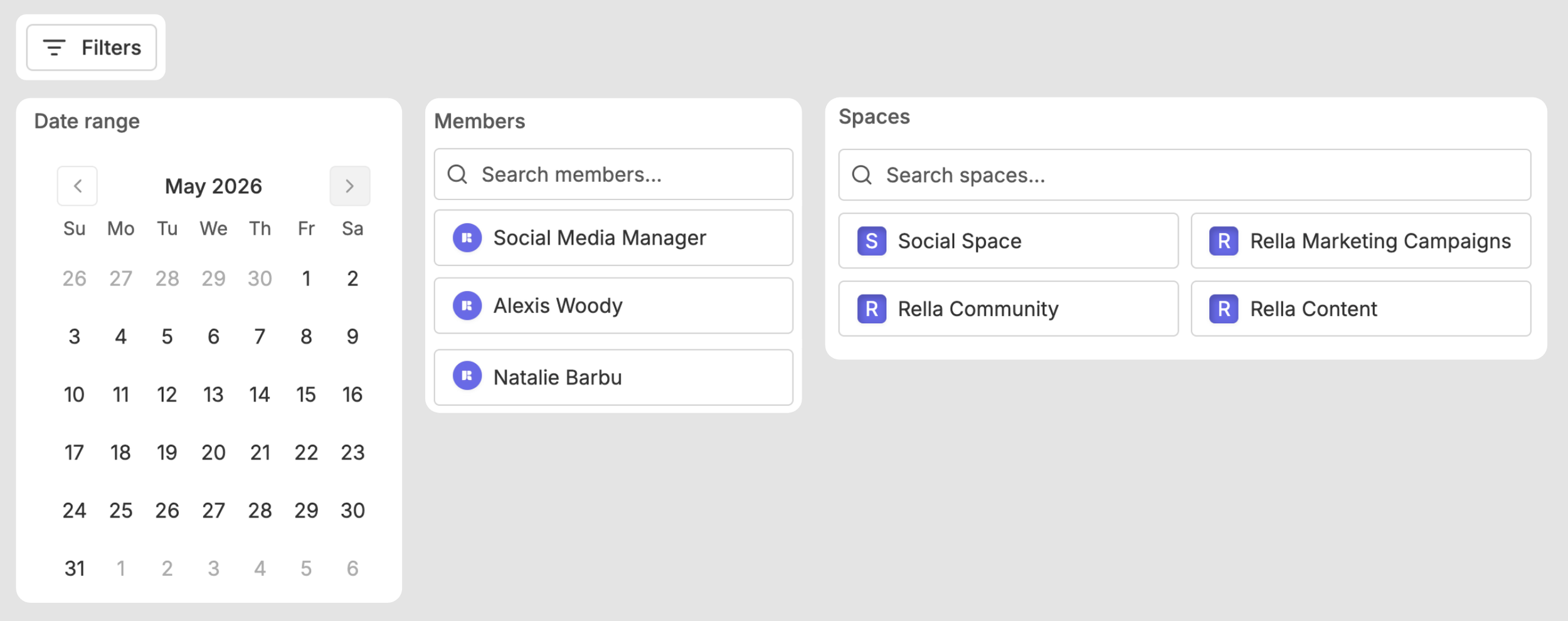
Apply filters for individual cards or across your entire dashboard so you always have a focused, relevant view. Access the Filter option in the top of your dashboard.
Filter options include:
Team Members: Focus on a specific person's content, tasks, and activity.
Social Spaces: Isolate data from one or more of your spaces.
Date Range: View data within a specific time window.
Card Displays
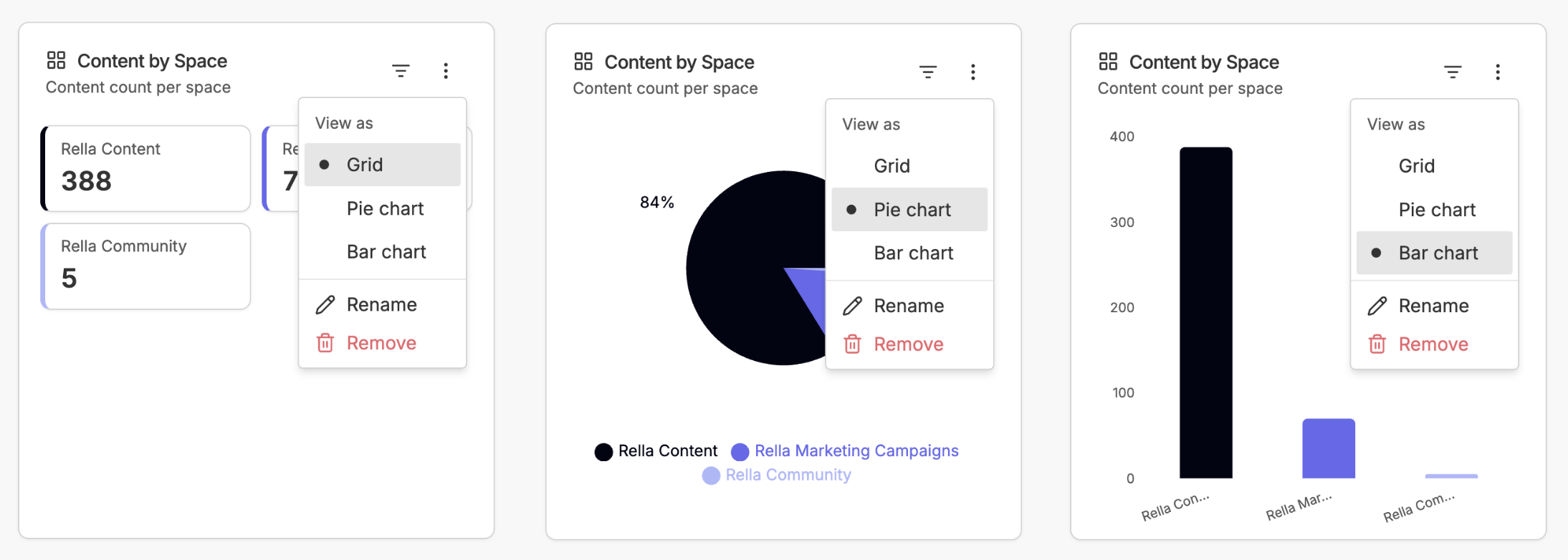
Some cards can be viewed in multiple formats depending on what's most useful for you. Access the card menu (the three-dot icon in the top corner) to switch between:
Grid: A clean, structured data view.
Pie Chart: Great for visualizing distribution at a glance.
Bar Chart: Ideal for comparing quantities across categories.
You can also Rename cards to better match your workflow, or Remove cards you don't need.
Create Items
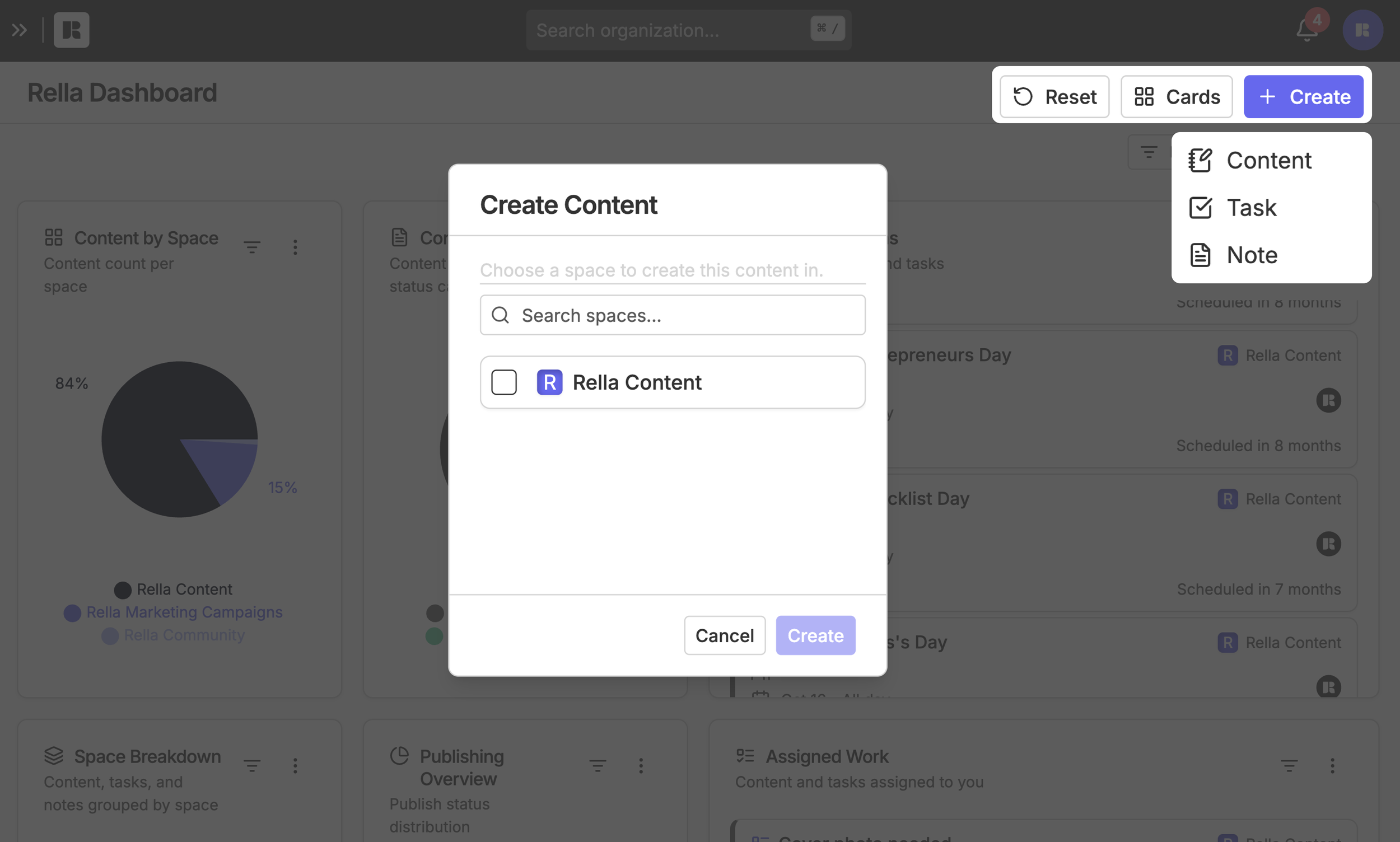
You don't have to leave your dashboard to keep things moving. Use the + Create button in the top right corner to get started. From any dashboard view, you can create:
Content: Start a new post without jumping into a specific space.
Tasks: Add a task on the spot when something comes up.
Notes: Capture ideas or details right from your overview.
Dashboard FAQs
Who can access Dashboards?
Dashboards is available to all Rella users with a paid member seat. Your Dashboard reflects data from the spaces and organizations you have access to.
Can I have multiple Dashboards?
Currently, each user has one personalized Dashboard view. Your layout and card preferences are saved to your account.
Will my team see my Dashboard layout?
No, your Dashboard is personal. Rearranging or resizing cards only affects your view.
Does the Dashboard update in real time?
Yes, cards like Recent Activity and Upcoming Items reflect live data from your spaces.
Can I filter by multiple members or spaces?
Yes, the filter supports selecting multiple team members and social spaces simultaneously so you can create a focused view that's still broad enough to be useful.
Can I remove cards I don't use?
Absolutely, open the three-dot menu on any card and select Remove to hide it from your Dashboard. You can always bring cards back later.
Can I request cards?
We'd love to hear what would benefit your team! Add your feature requests on Canny.