Track Content Tasks & Deadlines

About Tasks
The Tasks on Rella allows you to create to-do lists and manage content deadlines. You can assign due dates to tasks which will be shown on Rella’s content calendar. Save a list of tasks as a template to add to content across your Social Space.
By incorporating tasks into your workflow you can make sure that no detail is overlooked, helping you stay organized and on track!
How to Create Tasks
There are three ways to create tasks in Rella:
Within a Post: Open any piece of content and use the "Tasks" field to add tasks directly to that post.
From Board View: Click the "+ Create Task" button in the Tasks column on your board to create a standalone task that doesn't need to be attached to content.
From the Create Button: Use the "Create" button in the top right of your Rella dashboard and select "Task" to add a new task from a Project or Social Space.
How to View Tasks
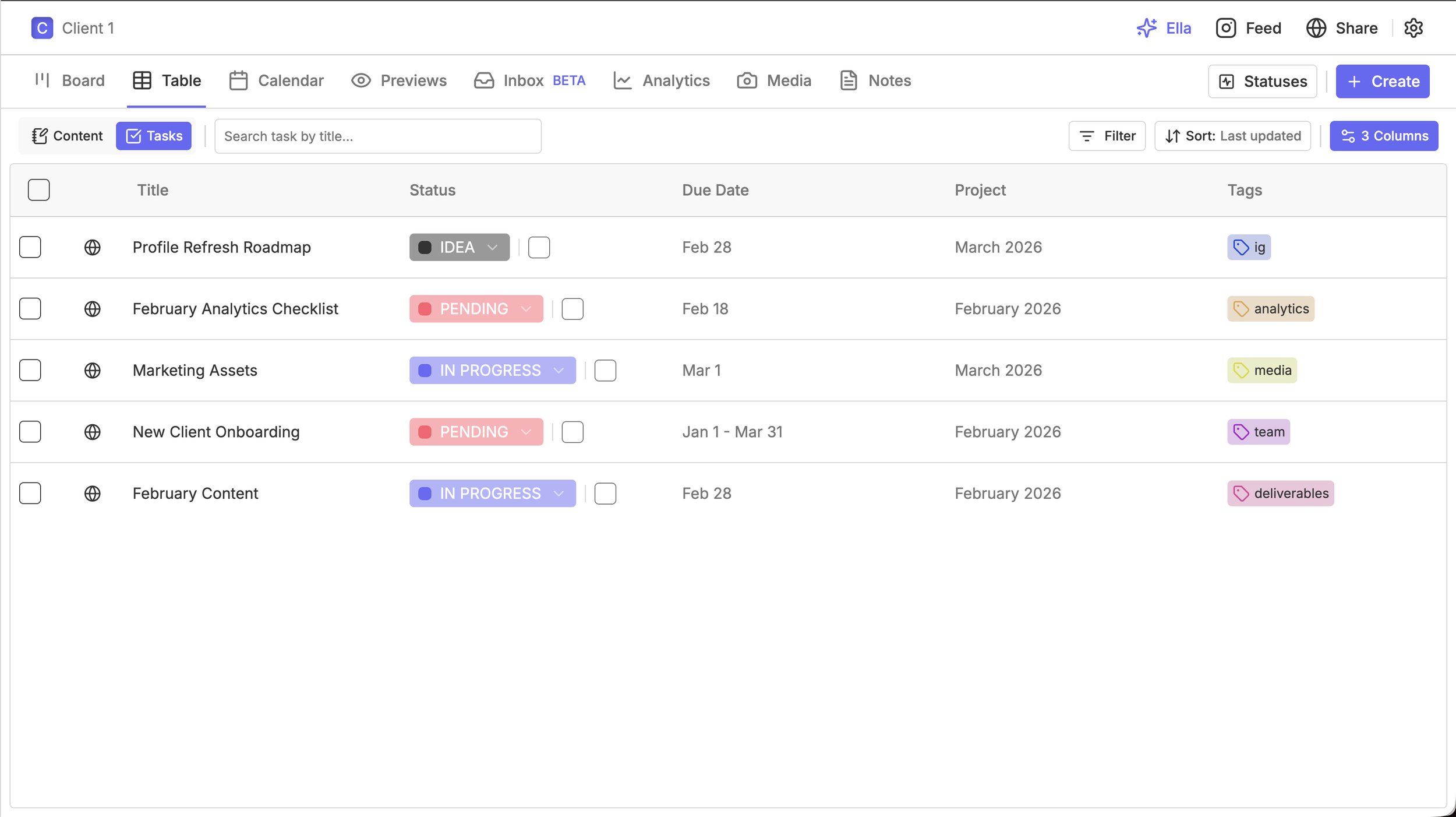
Once tasks are created, you can view them across three different views:
Board View: Click "Tasks" in the Content/Tasks toggle on the left side of your dashboard to switch between viewing content and tasks on your board. Tasks are organized by their status columns.
Table View: Click "Tasks" in the Content/Tasks toggle to see all your tasks in a table format with columns for title, status, due date, project, and tags.
Calendar View: Tasks with scheduled dates will appear on your calendar. If a task extends across multiple dates, the full duration will be shown. To view tasks without a date, look for the "Unscheduled" section. If you don't see the Unscheduled section, use the arrow to the left of the Month, Week, Day, List options to expand it.
How to Manage Tasks

Tasks Within a Post
You can add a list of tasks within a post to function as a checklist. Tasks within posts are perfect for tracking all the steps needed to get a single piece of content published.
What you can do:
Title the task
Assign start and end dates to each task
Assign team members to each task
Add a status to each task
Mark each task as complete using the checkbox
Save the entire task list as a template using the bookmark icon next to "New Task"
Standalone Tasks
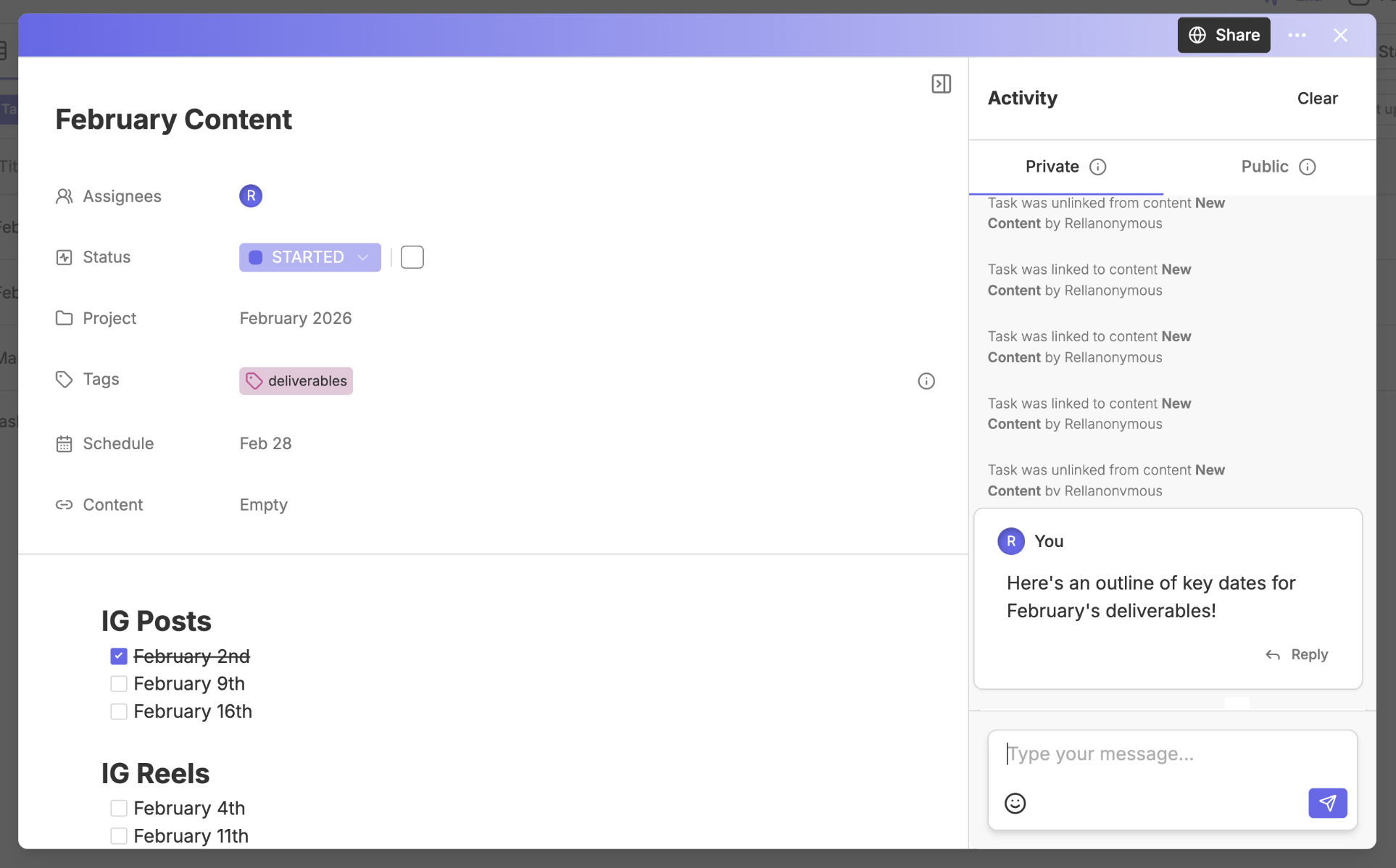
Standalone tasks are designed for work that doesn't live inside a single post. Each standalone task functions as its own item.
What you can do:
Title the task
Add a status
Mark the task as complete
Assign the task to a project
Add tags for easy filtering and organization
Assign a start and end date
Attach the standalone task to a piece of content if needed
Add a note associated with the task
View the activity history to see all updates and changes
Communicate with your team using private or public comments within the task
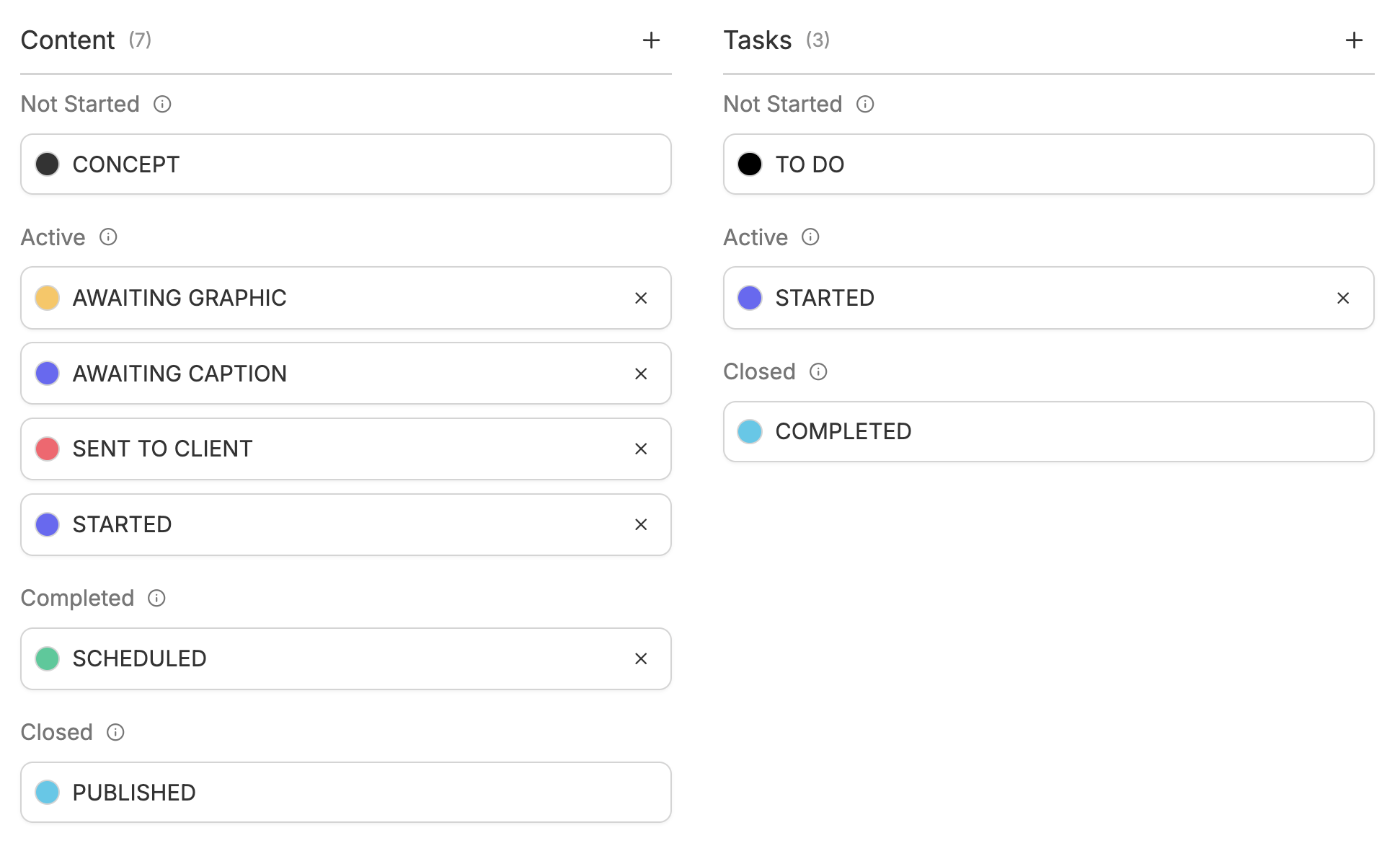
Tasks can have their own Statuses, separate from your content statuses. This means you can customize how tasks move through your workflow independent of how your content is organized. To set up task statuses, click "Statuses" in the top right of your dashboard and create a separate status list for tasks.
Frequently Asked Questions
Can I get notifications for tasks?
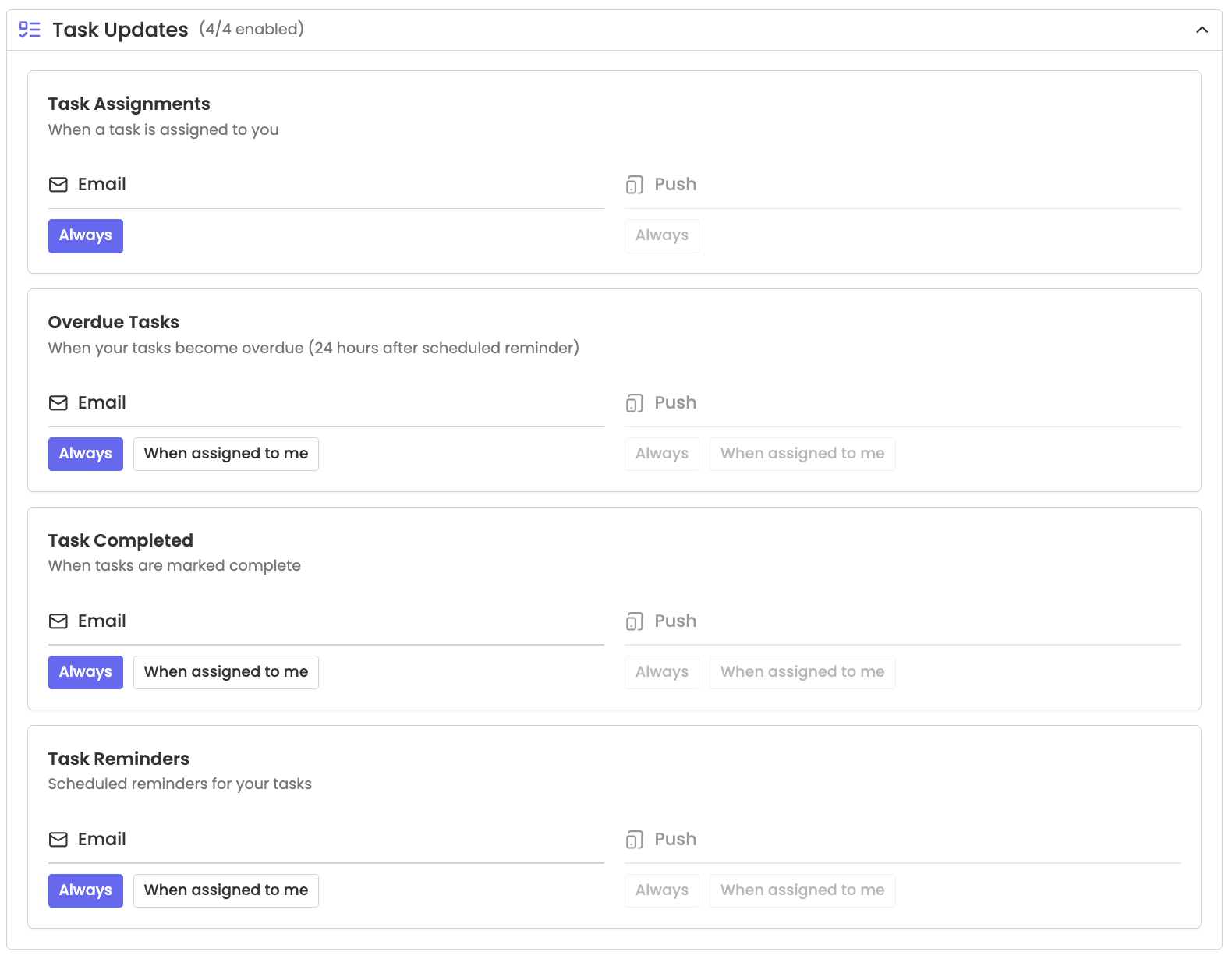
Yes, you can set adjust preferences in your Notification settings! Receive notifications when tasks are:
Assigned to you
Overdue
Completed
Scheduled