Work Smarter with AI Assistance
What Is Ella?
Meet Ella your AI-powered teammate. Ella handles recurring tasks, surfaces insights, creates content calendars, keeps clients in the loop, and takes action inside your Rella automatically.
Included in Rella Premium and Premium Plus plans with flexible AI usage options. Learn more.
Ella’s Capabilities
Here are a few ways social media marketers use Rella to save time and boost results:
Analysis & Strategy: Build strategic content calendars based on your past performance, goals, and audience insights. Let Ella analyze your account and recommend what content types, topics, or posting times are working best, so your next campaign is driven by data, not guesswork. Share those AI insights with clients via reports.
Caption Writing: Generate first drafts, rewrite old posts, and fine-tune copy in your brand voice. Quickly create content that feels customized and on-brand without starting from scratch.
Insights & Recommendations: Analyze your connected accounts and highlight what’s working, what’s not, and what to try next.
Video Summaries: Let Ella watch your long-form or short-form video content and suggest post captions, titles, and CTAs.
Content Repurposing: Turn top-performing posts into new formats (ex: repurposing a Reel caption into a carousel or a YouTube video into a LinkedIn post).
Planning: Use Ella’s suggestions to quickly fill in gaps in your content calendar, whether you need fresh ideas or smarter spacing between post types.
Task Management: Let Ella be your second brain. From content deadlines to client deliverables, Ella organizes your tasks so you can focus on the creative work.
Trend Sourcing: Ella is capable of internet searching! Ask Ella to recommend current trends within your industry.
Ella’s capabilities are always expanding, she gets smarter the more you use her!
Dashboard
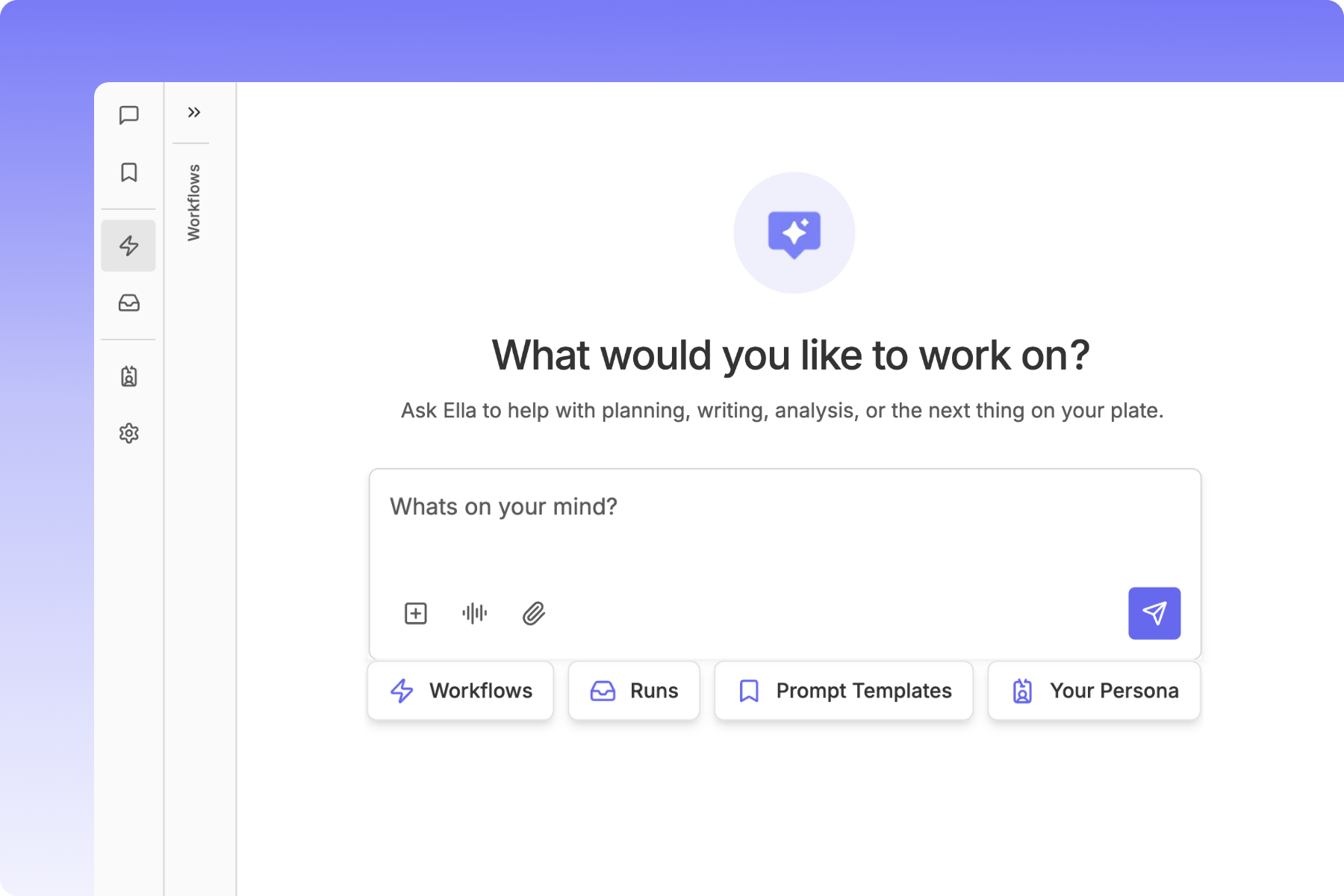
Access Ella in the top right of your Rella workspace. On the left side of Ella’s dashboard, you’ll find a navigation panel to interact with core features:
Conversations: your active and past Ella chats
Prompts: Saved and curated templates
Workflows: Build and automate processes
Runs: History of all workflow executions
Persona: Brand voice and identity guidelines
Settings: Workflow Usage, Ella Spend & Limits, Memories
Conversations
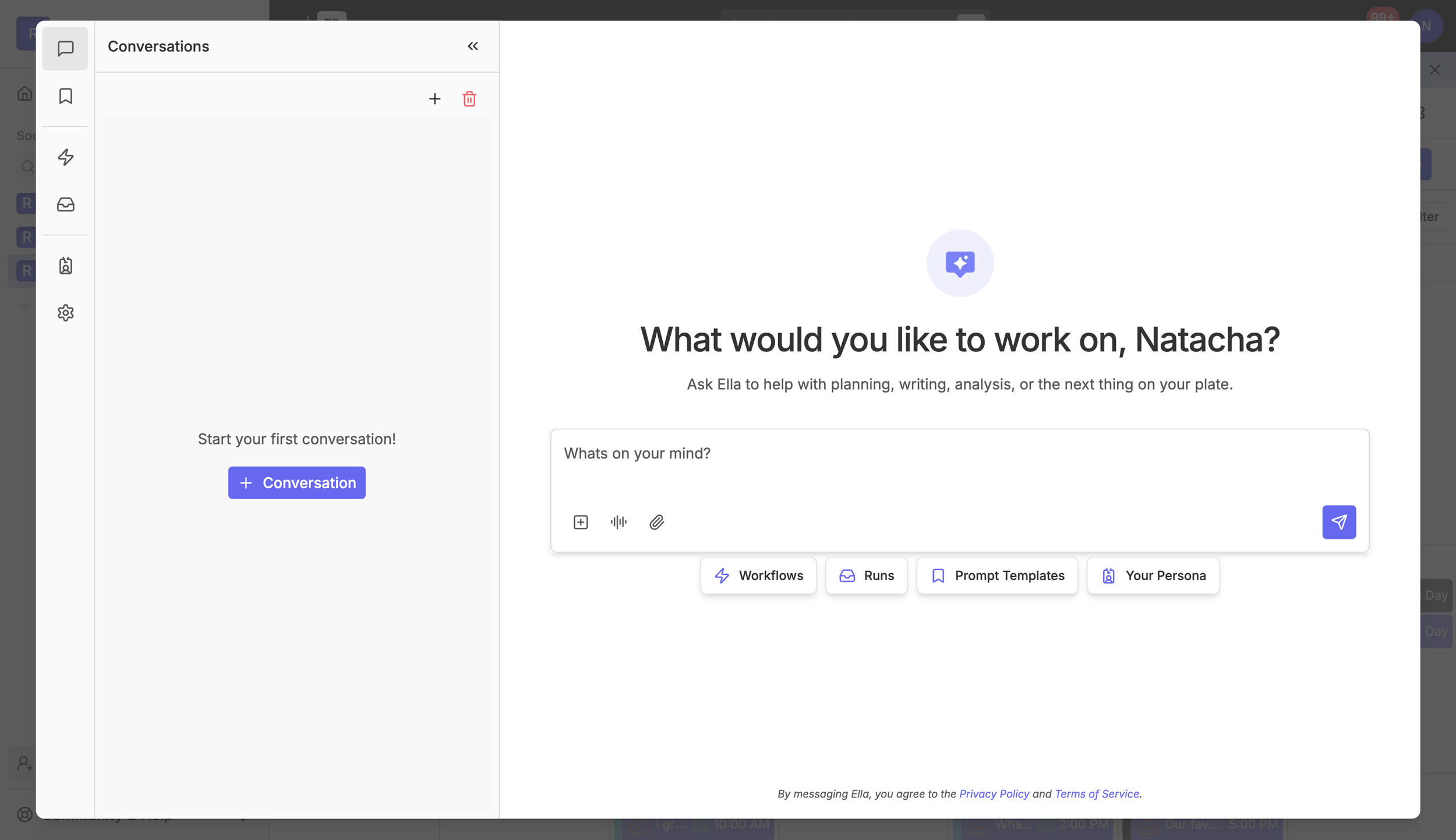
Ask Ella to help with planning, writing, analysis, strategy, or anything else on your plate. Start a new conversation anytime and access past conversations in the left panel.
Ella can analyze connected Rella accounts, pull data, suggest on-brand content, rewrite captions, build strategy plans, and update items in your Social Space — all within the flow of a conversation.
Add Items
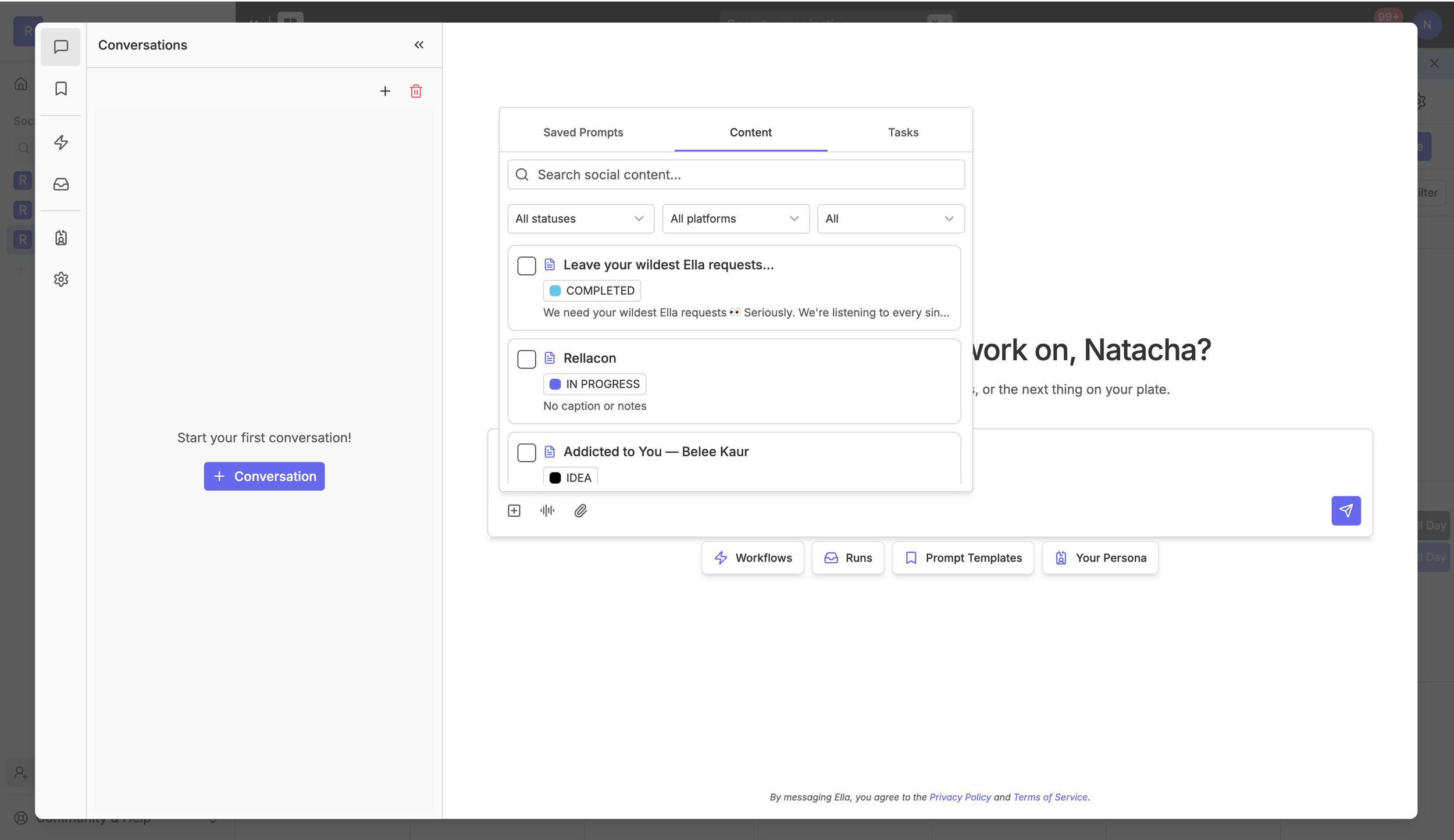
Reference items within your Social Space as context for Ella to act on. Click the + icon in the chat box to browse Saved Prompts, Content, and Tasks. Filter by status, platform, or type to find exactly what you need. This is useful any time you want Ella to work with something that already exists in your pipeline.
Voice Dictation
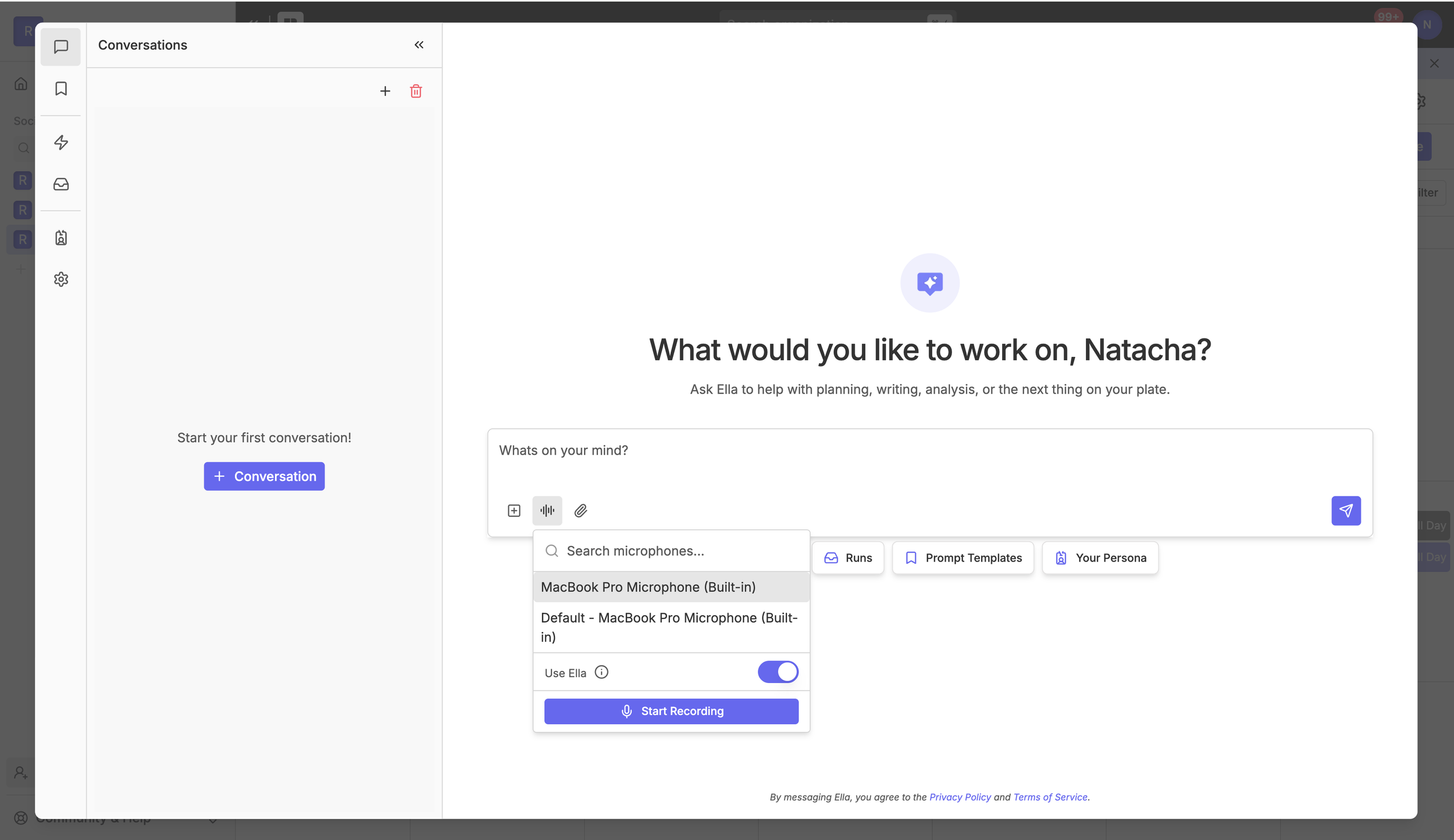
Save time and communicate your way within Ella’s chat. Ella’s capable of transcribing (1) directly within the chat (2) or when you upload an audio file.
To use Voice Dictation:
Click the microphone icon in the chat and select your preferred microphone from the dropdown.
Toggle Use Ella to choose how your voice is transcribed. Leaving it off uses your browser's native transcription (best for quicker responses, does not use Ella credits). Turning it on counts towards Ella usage in exchange for better accuracy (recommended when precision matters).
Click Start Recording, speak, and Ella handles the rest.
Voice dictation is especially helpful for capturing on-the-go content ideas, leaving context for a Workflow, or describing what you need without composing a formal prompt.
Attach Files
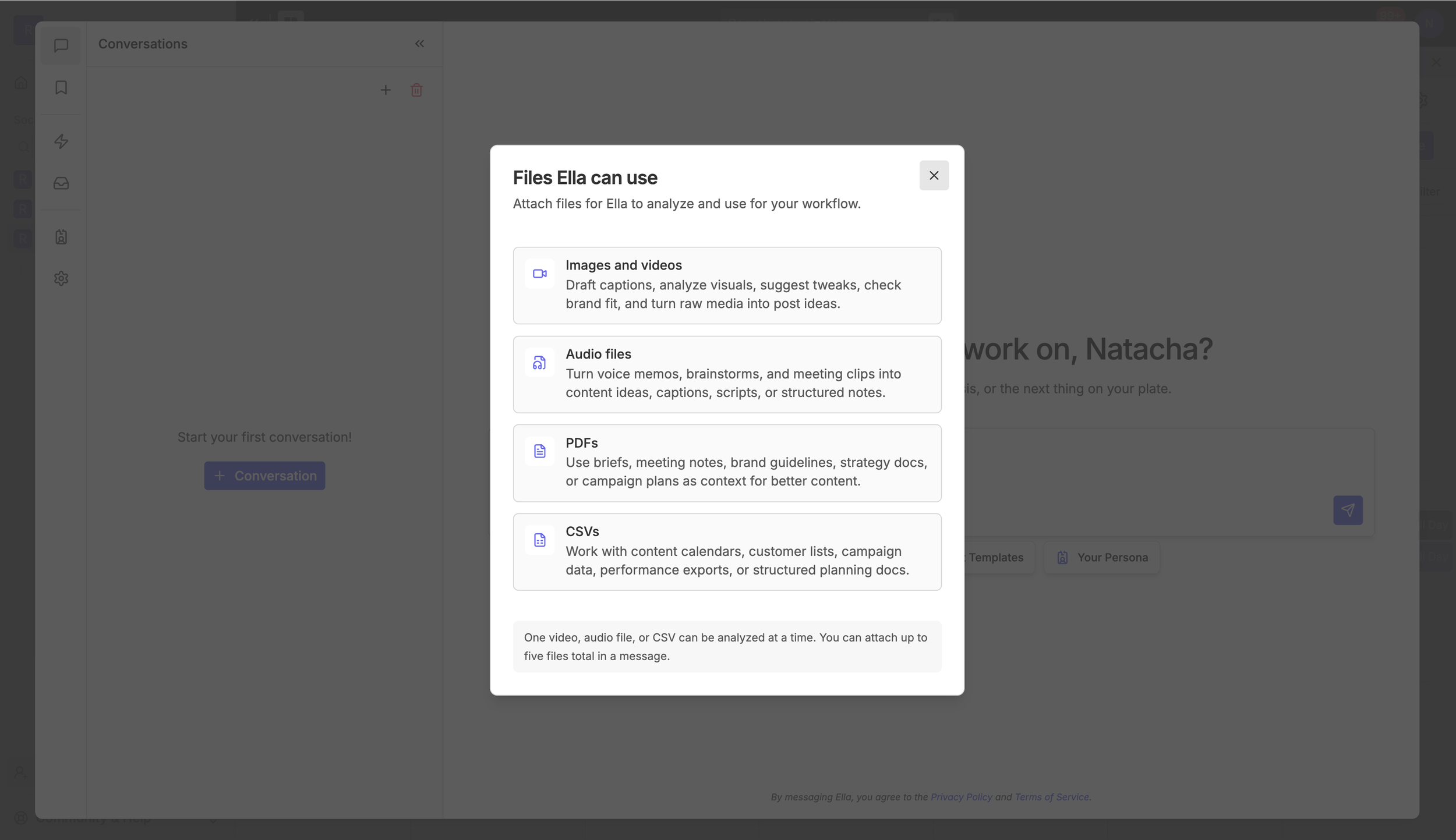
Click the paperclip icon in the chat to attach files from your device or from Rella's gallery of previously uploaded files. Attaching files is a great way to bring information from outside Rella into your workspace, giving Ella the context she needs to produce more relevant, on-brand results.
File types Ella can work with:
Images and videos. Draft captions, analyze visuals, suggest tweaks, check brand fit, and turn raw media into post ideas.
Audio files. Turn voice memos, brainstorms, and meeting clips into content ideas, captions, scripts, or structured notes.
PDFs. Use briefs, meeting notes, brand guidelines, strategy docs, or campaign plans as context for better content.
CSVs. Work with content calendars, customer lists, campaign data, performance exports, or structured planning docs.
You can attach up to five files per message. One video, audio file, or CSV can be analyzed at a time.
Prompts
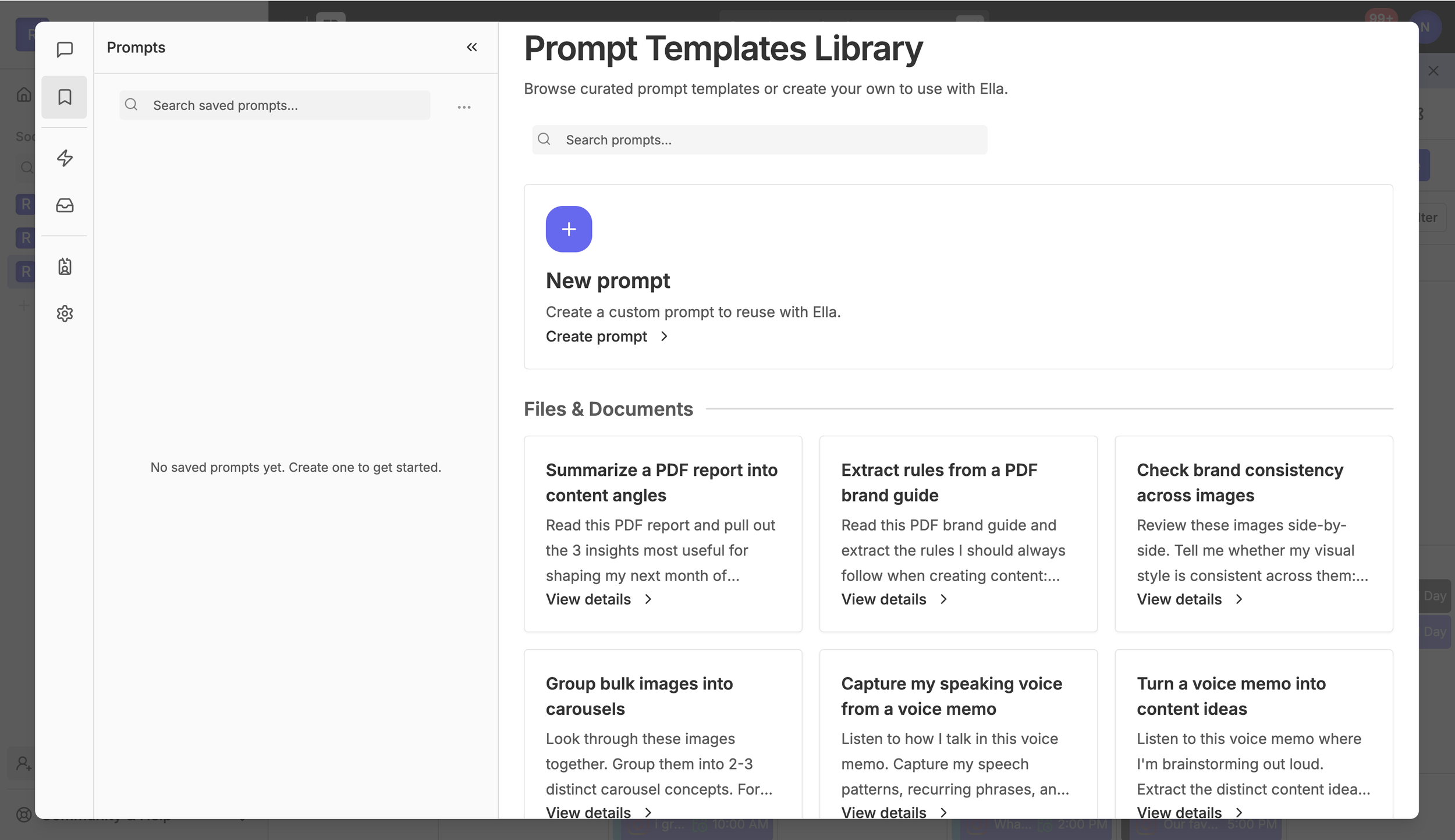
Prompts are ready-to-use templates that make it easier to get the most out of Ella. Either way, templates remove the guesswork and save time, especially for processes you return to often.
Browse Rella's curated library for inspiration on what Ella can do, or
Save your own for frequently referenced requests. Either way, templates remove the guesswork and save time — especially for tasks you return to often.
Access the library from the bookmark icon in the left navigation panel. Templates are organized by category, and you can search by keyword to find what you need quickly. Click View details on any template to preview the full prompt before using it.
When you click Use Prompt, Ella will open the chat with the prompt already loaded. Just hit enter and Ella gets to work. To save a template for future use, click Save from the details view and it will appear in your saved prompts panel for quick access anytime.
You can also create your own templates. Click New Prompt in the library to write and save a custom prompt tailored to your workflow. Custom prompts are great when you've already figured out the right way to ask.
Workflows
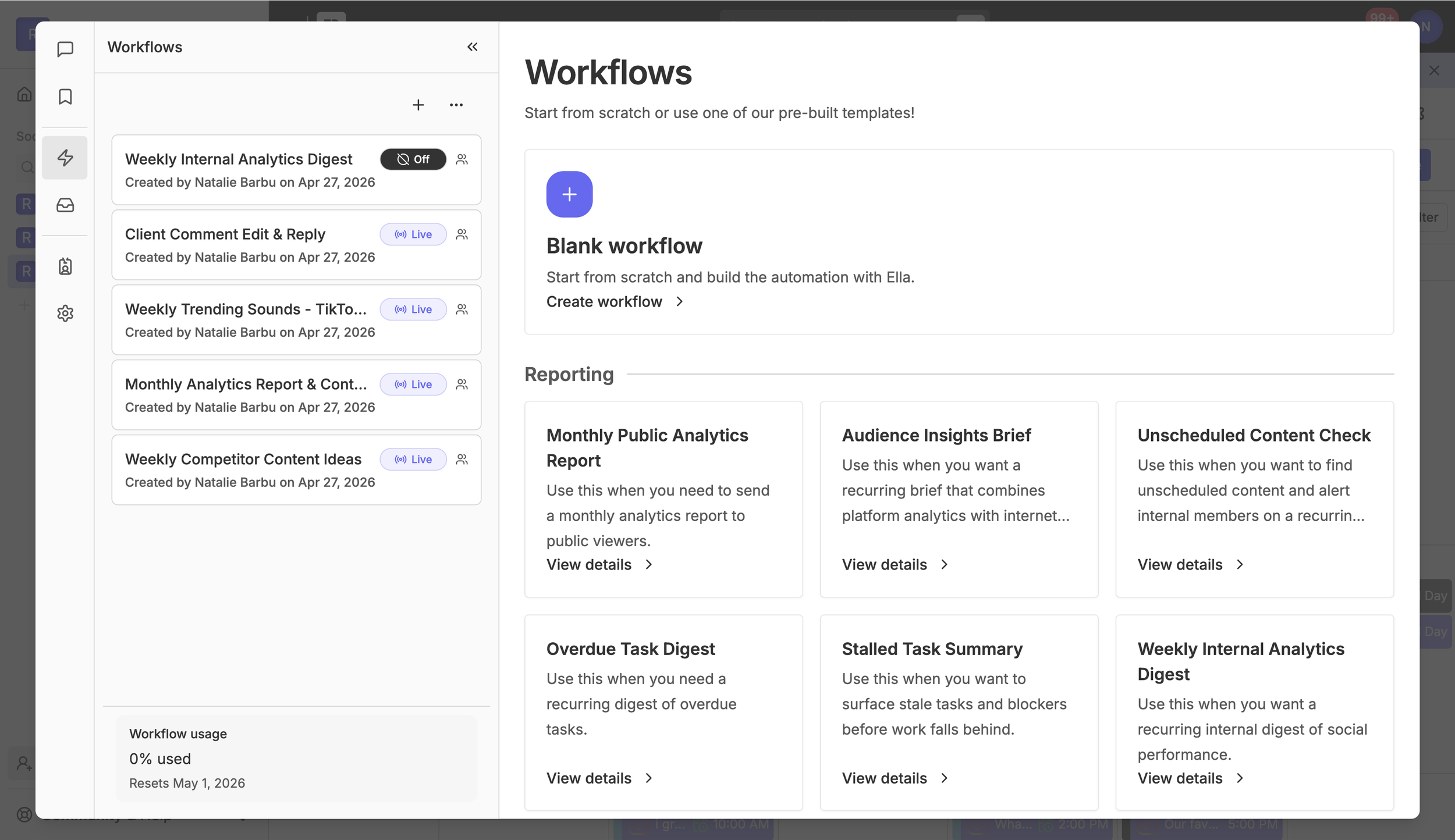
Workflows let you automate recurring process entirely. Set them up once, put them on a schedule, and let Ella handle the rest on autopilot. Use workflows to research internet search results, analyze performance data, draft and save content, share emails to contacts, send replies to comments, and more.
Access Workflows from the lightning bolt icon in the left navigation panel. Start from a blank workflow or choose from Rella's pre-built templates, organized by category.
Examples of Workflows Ella handles:
Weekly competitor content research. Search the web every Monday, synthesize what competitors are posting, and save ideas as a note in Rella.
Monthly analytics reports. Generate a report, analyze insights, email it to contacts, and create new content ideas based on what's working.
Weekly trending sounds. Find trending sounds on TikTok and Instagram and create posts on the calendar.
Comment management. When a comment requests an edit, apply the change and post a confirmation reply.
Internal analytics digest. Surface performance highlights for the internal members every week.
Build Workflows
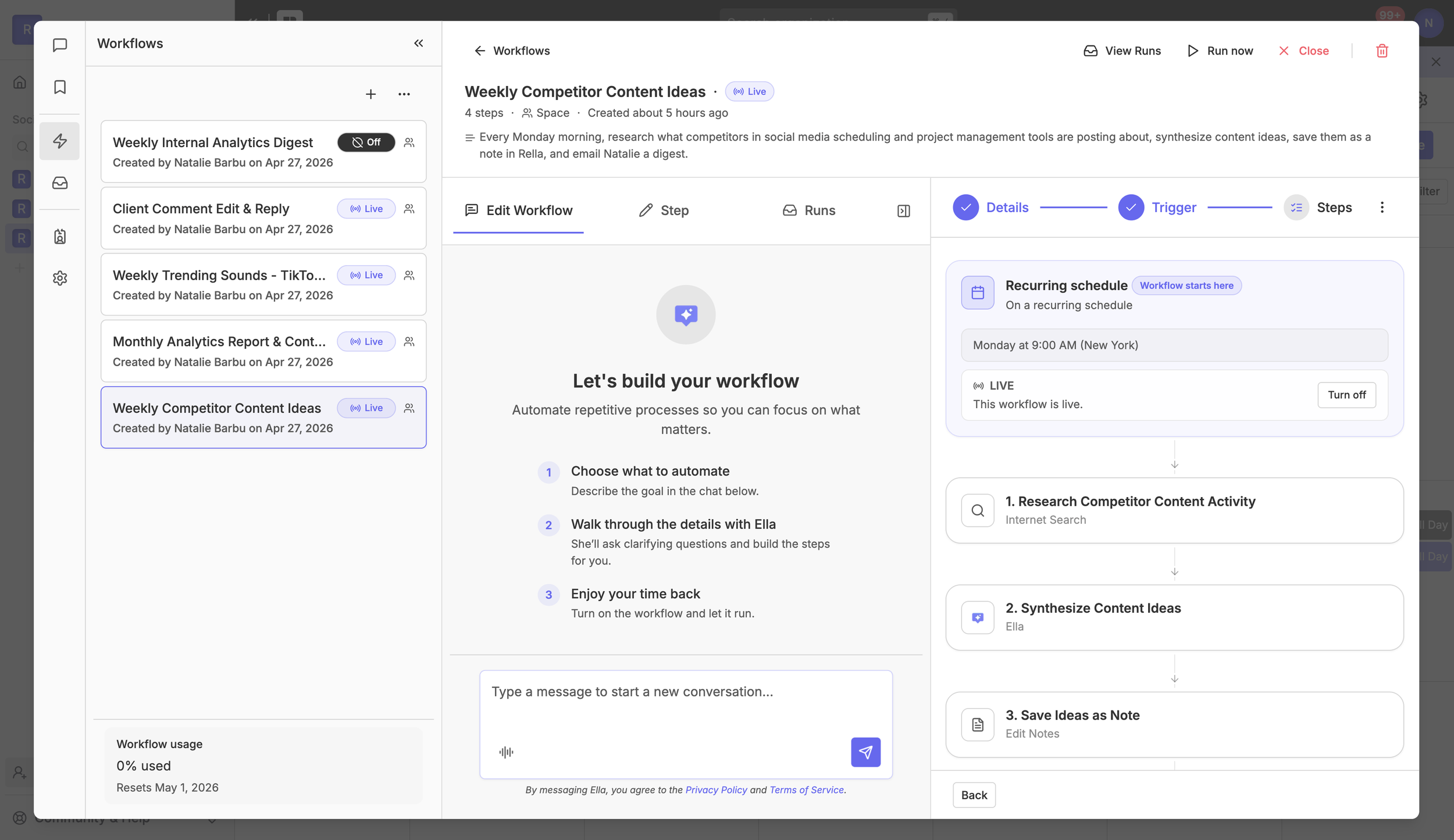
Creating a Workflow is a conversation. You don't need to build steps manually, Just tell Ella what you want to automate and follow next steps.
Describe the goal. Type what you want to automate in the chat. For example: "Every Monday, find trending sounds on TikTok and Instagram and create a content item for each one in Rella."
Debrief with Ella. Ella will ask clarifying questions and build the steps for you automatically, showing the sequence take shape in the right panel.
Turn it on. Set your schedule, activate the workflow, and let it run. You'll see each step execute in real time when the workflow fires.
Workflow Details
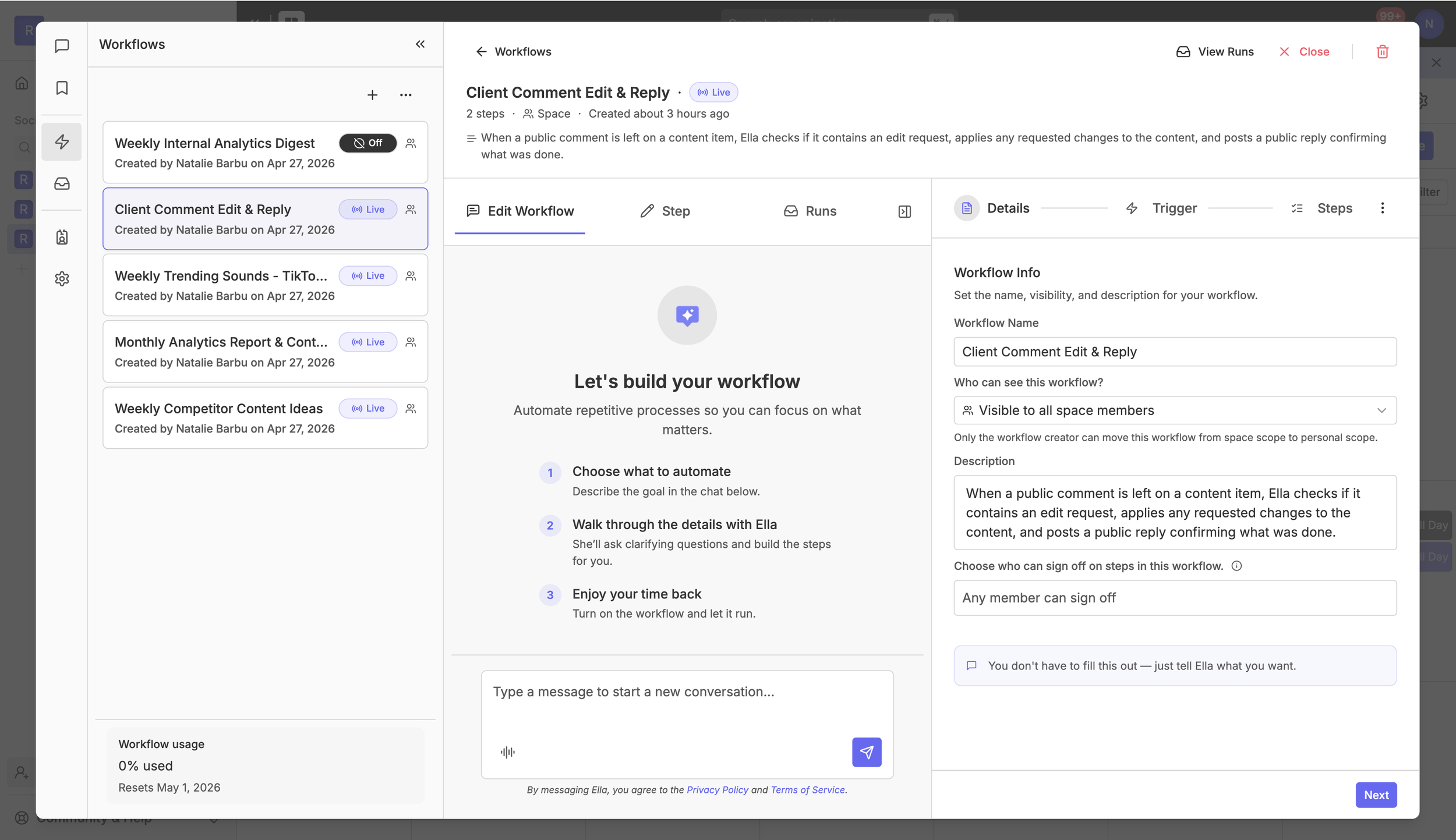
Each workflow has a Details panel where you can edit the workflow name, visibility, description, and control which internal members can sign off on steps before they execute.
Workflow Name. Give it a clear, descriptive name so internal members know what the workflow does at a glance.
Visibility. Set the workflow to be visible to the curent Space, all Spaces, or keep it private.
Description. Add a summary of what the workflow does. Utilize Ella to fill this in automatically.
Sign-off settings. Choose whether internal members can approve steps. Useful when a workflow modifies content or sends emails.
Workflow Triggers
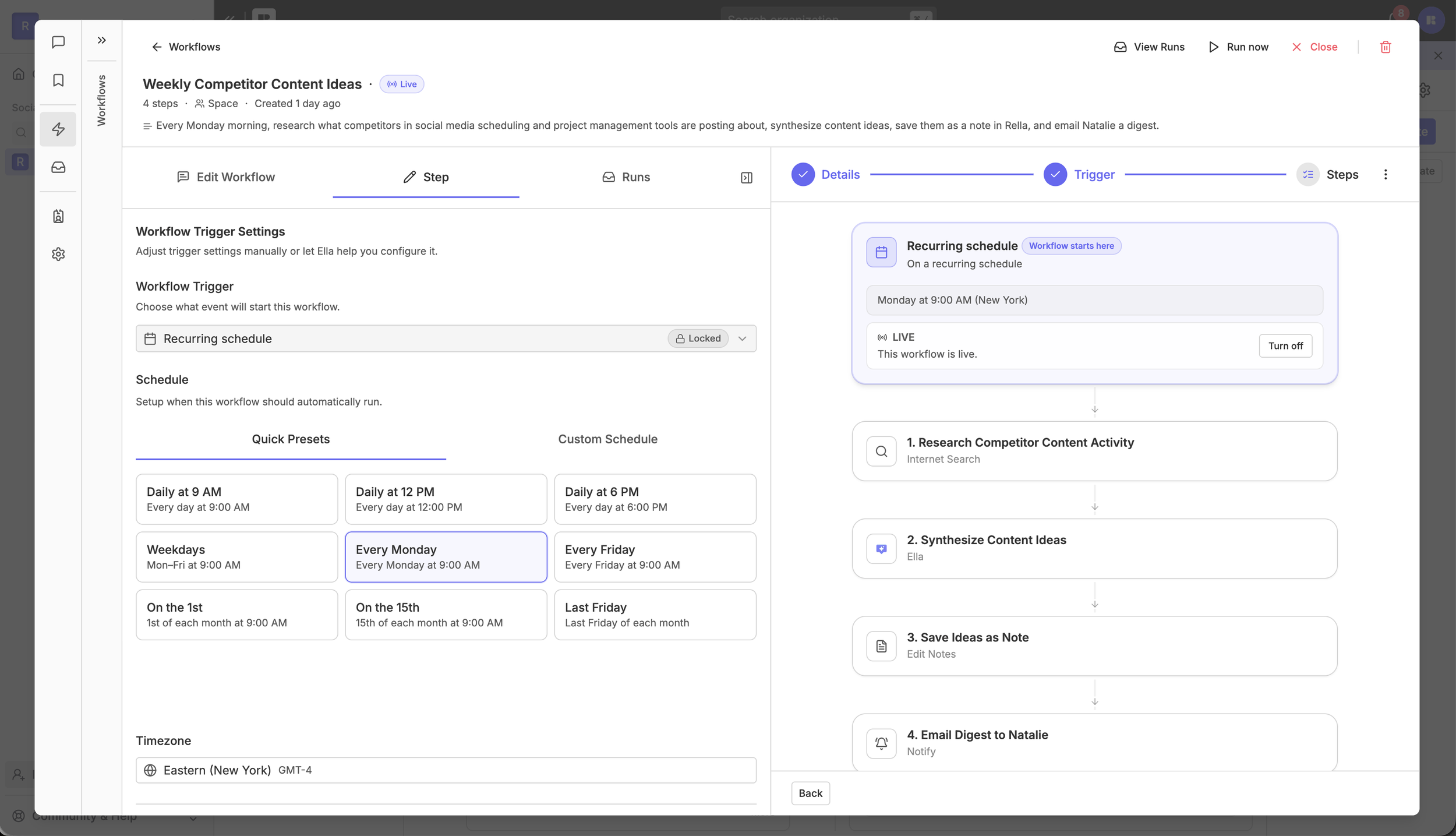
A trigger is what starts a workflow. Every workflow begins with one, and it determines whether the workflow runs on a set schedule or fires automatically in response to something happening in your Rella workspace.
Trigger Types
Recurring Schedule Set your workflow to run automatically on a regular rhythm. Choose from Quick Presets (daily, weekly, on the 1st of the month, etc.) for common schedules, or switch to Custom Schedule for more specific timing.
Set your timezone and the workflow will run at the right local time. Once configured, toggle the workflow to Live.Event-Based Some workflows are triggered by activity rather than a schedule. For example, a workflow can be set to fire whenever a public comment is created on a content item. Event based triggers are useful for automating responses, applying edits, or flagging items for review without any manual input.
Access trigger settings from the Step tab inside your workflow. You can adjust the trigger manually or ask Ella to edit for you. Depending on the trigger type, you'll see additional options:
Event-based trigger lets you specify where the event occurs (such as on a content item)
You can also actions based which internal member is tagged/mentioned.
Once your trigger is set, the right panel updates to reflect it at the top of the workflow step chain, showing exactly what event or schedule starts the sequence and whether the workflow is currently live or off.
Workflow Emails
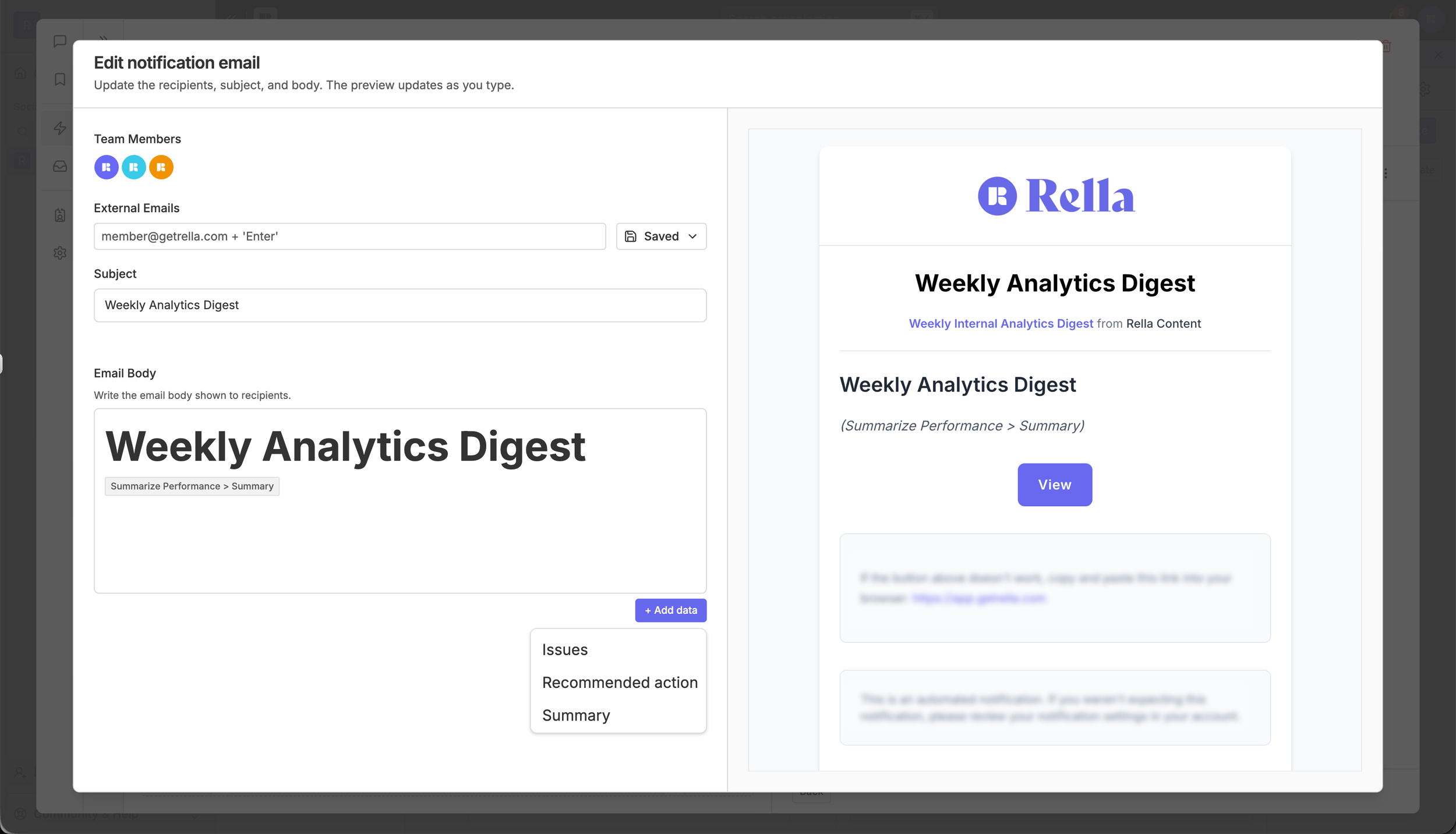
Workflows can automatically send emails to internal members and public viewers as part of any step sequence. No manual sending required. This is useful for delivering recurring reports, surfacing weekly insights, sharing content ideas, or keeping contacts informed without adding it to your to-do list.
Workflow Email Set Up
When editing an email step, you'll define three things:
Recipients. Select internal members directly from your Space or add external email addresses. Both can be included in the same email list.
Subject line. Write a static subject or make it dynamic by adding data from earlier workflow steps using the + Add data button. For example, a monthly report email can automatically include the month name in the subject line to auto update every time an email is sent.
Email body. Edit the body of the email directly in the editor. The preview updates in real time as you type, so you always see exactly what recipients will receive.
Dynamic Data
The real power of workflow emails is the ability to pull in live output from earlier steps. Use + Add data to insert fields from any previous step (ex: performance highlights, content ideas, engagement trends, or recommendations) directly into the email body. Each section maps to a specific output from the workflow, so the email assembles itself automatically each time it runs.
This means a weekly analytics digest, for example, can arrive in a client's inbox fully populated with that week's actual data — written, formatted, and sent by Ella without anyone lifting a finger.
Email Previews
A live preview panel sits alongside the email editor so you can see the fully formatted email as you build it.
*White label emails on Rella Premium Plus!
Runs & History
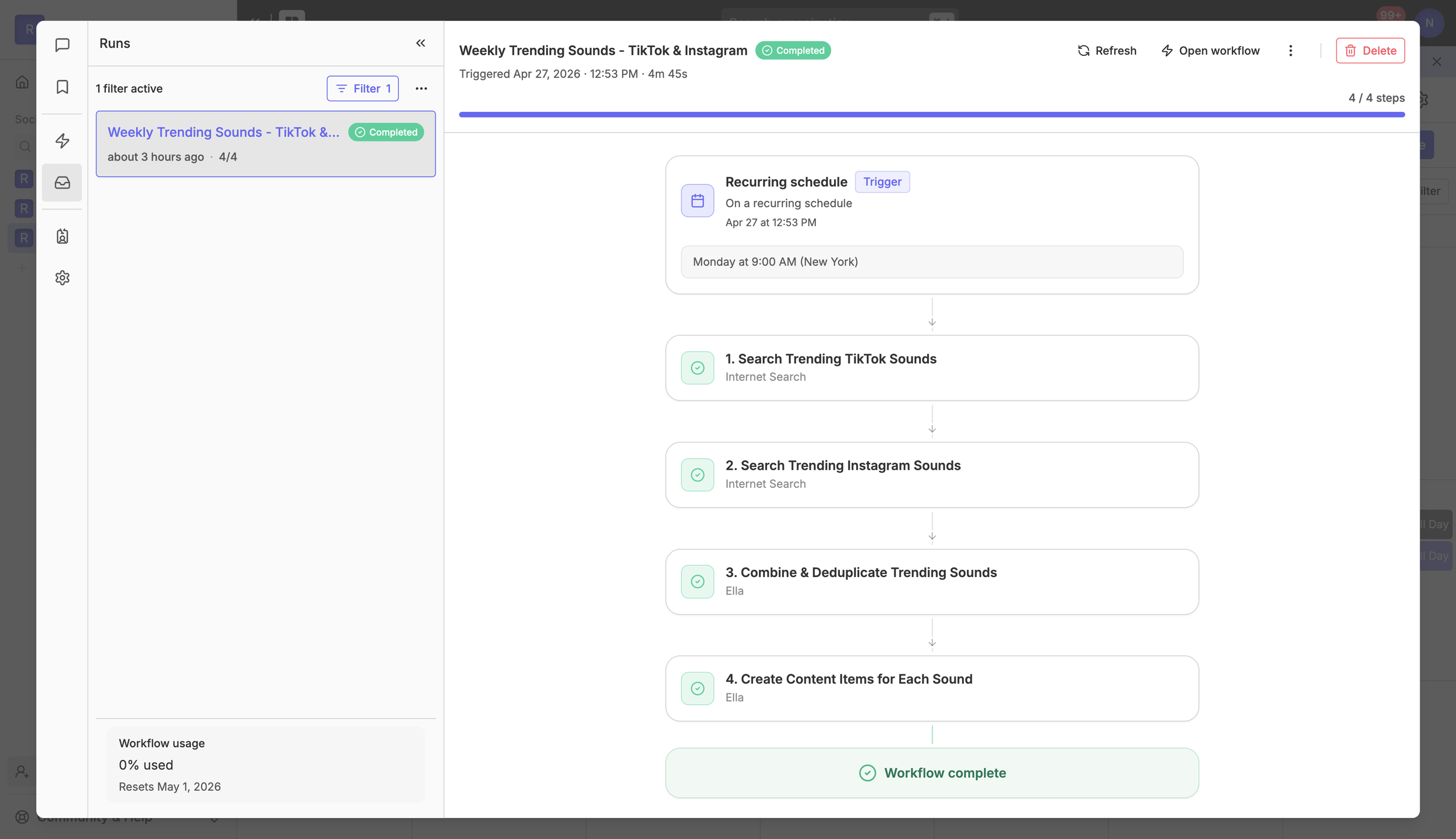
Every time a workflow executes, it creates a Run — a full log of what happened, step by step. Access Runs from the inbox icon in the left navigation panel or within the Runs tab in any workflow.
Within Runs, you can see which workflows have run, when they ran, how long they took, and, whether they completed successfully.
Click into any run to see a visual step-by-step breakdown of the entire sequence. Each step is listed in order alongside its output, so you can see exactly what Ella searched, generated, or acted on at every stage.
Use Run now in the workflow builder to trigger a workflow manually at any time, and use the Refresh button to check on live progress while a run is still executing.
Inspecting Steps
Click into any individual step within a run to see its full output.
For internet search steps, you'll see the exact results Ella pulled from the web, including sources and publish dates.
For Ella steps, you'll see the generated response — whether that's a synthesized list, structured data, or a summary passed into the next step.
This makes it easy to understand not just what the workflow produced, but how it got there.
Run Statuses
Each run and individual step carries a status so you always know where things stand:
Running: the workflow is actively executing
Waiting: the workflow is paused between steps
Awaiting Approval: a step requires manual sign-off before it can proceed
Completed: the workflow finished successfully
Failed: something went wrong during execution
Denied: an approval step was rejected and the workflow did not proceed
Cancelled: the run was stopped manually
Expired: the run was not signed off before the approval window expired
Run History gives you full visibility and accountability into everything Ella is doing on your behalf — so you always know what ran, what Ella produced, and what to expect next time.
Personas
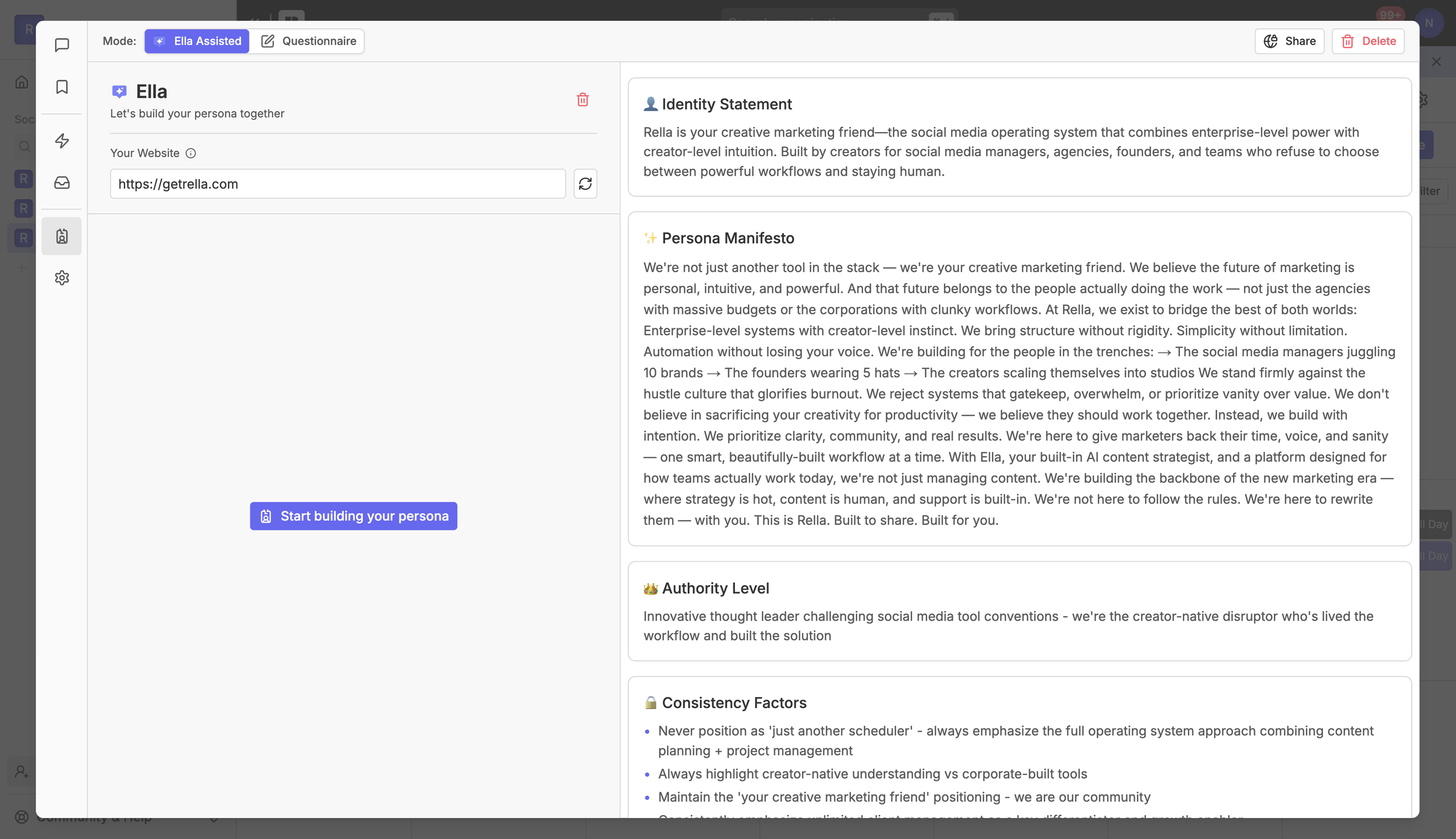
Your Persona is the foundation Ella uses to match your tone, voice, audience, and content style across every interaction. The more complete your Persona, the more on-brand Ella's recommendations will be — across conversations, content drafts, and Workflows.
Personas are per Social Space, so each business you manage can have its own distinct voice and guidelines.
Building Your Persona
Choose the approach that works best for you:
Ella Assisted. Chat with Ella to generate Personas through conversations. Enter your website URL and Ella will search it, pull relevant brand information, and apply it to your Persona automatically. Receive summaries of what was captured and respond to follow-up questions to fill in any gaps.
Questionnaire. Prefer to fill it in yourself? Switch to Questionnaire mode and work through each section manually. The questionnaire is organized into tabs — Identity, Values, Voice, Goals, and Content — so you can build a thorough, structured profile at your own pace.
Persona Details
A complete Persona covers every dimension Ella needs to write and think like your brand:
Identity Statement. A concise summary of who your brand is, what it does, and the angle it brings to the world.
Persona Manifesto. Your north-star narrative: what you stand for, the change you want to create, and how you show up consistently.
Non-Negotiables. Hard rules Ella must always follow, spanning tone, claims, safety, compliance, or brand posture.
Authority Level. How your brand positions itself in within the desired industry.
Consistency Factors. Specific rules Ella should always applies when providing recommendations.
Values. The core beliefs that drive the brand.
Voice Traits. Adjectives and phrases that describe how the brand sounds, with the option to add custom traits or choose from suggestions.
Tone Guidelines. Explicit do's and don'ts that shape the energy and phrasing of your content
Goals. What your brand is working toward.
Audience Intent. Who you're speaking to and what you want them to feel
Platform Voice Shifts. How your tone adapts across social and marketing platforms.
Content Boundaries. What your brand will never do or say.
Content Preferences. Preferred formats, recurring themes, and creative constraints
Share Personas
If you’d like someone else to contribute to a Persona, you can send them a link to provide more details (no login required).
Click Share in the top right of your Persona settings to generate a public link. You can set access to anyone with the link, toggle AI-Assisted Editing on so they can use Ella's help while filling it out (will count towards Ella usage), and set a link expiration date if needed.
Public contributors can view and edit the Persona without accessing any internal team data.
Billing & Usage
How much of my usage does every interaction with Ella use?
Each conversation message and Workflow step uses a different amount of credits based on complexity. Simple tasks like rewriting a caption use fewer credits, while advanced multi-step Workflows use more. Track your usage anytime under Settings → Ella Spend & Limits.
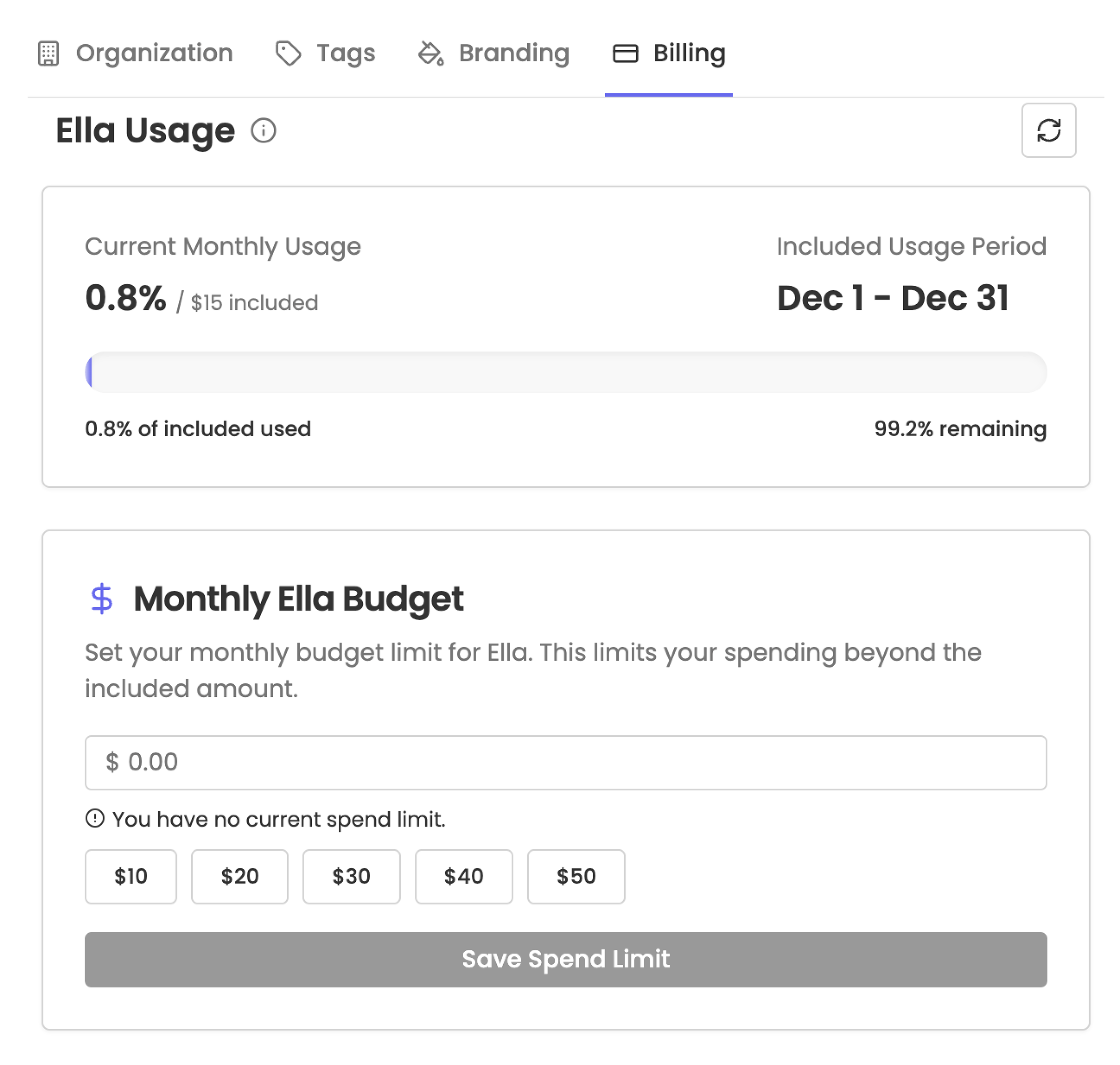
To access usage details, go to your Organization settings (top left) > Billing > Ella Usage
Why do I have to pay extra to go over my Ella usage?
Rella Premium includes a set amount of Ella usage per seat. Rella Premium Plus gives access to unlimited usage.
If you’re on Rella Premium and go over your included usage, you only pay for what you use beyond that. This pay-as-you-go model helps us manage the real costs of running advanced AI models and ensures that usage stays purposeful, intentional, and sustainable.
I subscribed for more access to Ella, but I didn't use it. Will I still be charged?
Nope! When you subscribe for more Ella access, you’re setting a usage limit not committing to a fixed charge. If you don’t go over your included plan credits or don’t use the additional AI features, you won’t be charged. You only pay for what you actually use!
What happens when I hit my included Ella usage limit?
If you’re on Rella Premium (monthly or yearly), your Ella usage resets at the start of every month. If you hit your monthly included usage, you’ll have the option to subscribe to additional Ella Usagein your Organization settings.
Once you subscribe:
You can keep using Ella immediately.
You’ll be billed for any usage beyond your included amount.
This overage billing runs on its own cycle, starting from the date you subscribed to Unlimited Ella Usage.
Example:
You’re on Rella Premium with included usage that started on July 1st, and you hit your usage cap on July 15th.
You subscribe to additional Ella Usage that same day.
You’ll be charged for any extra usage from July 15 to August 15 (your overage billing cycle).
Meanwhile, your included usage resets on August 1, so you get more included Ella time before incurring more overages.
If you go over again before August 15, you’ll continue accumulating overage charges, which get billed when your cycle ends.
In short, Ella usage resets monthly and overage charges follow your personal billing date.
*Rella Premium includes standard Ella usage per seat. Upgrade to Premium Plus for additional usage. Free trial users will receive complimentary Ella usage with limited allowance.
Ella FAQs
Is there a limit to how much I can use Ella?
Rella Premium includes a set amount of Ella usage. Once you hit your limit, you can continue using Ella by purchasing additional credits on a pay-as-you-go basis. This flexible approach ensures you only pay for what you actually use and encourages more thoughtful, intentional AI usage without waste.
Rella Premium Plus gives access to unlimited usage!
Is my content shared with third-party AI providers?
When you use Ella, your input may be sent to trusted third-party AI providers (like OpenAI, Anthropic, and Google Gemini) to generate responses. We don’t use your content to train our models, but these providers may use it by their privacy policies. We only send the minimum necessary data to generate responses.
What is the environmental impact of using AI with Ella?
We care deeply about building tools that are not only powerful but also thoughtful. Ella is powered by third-party machine learning providers whose infrastructure and sustainability efforts vary. For transparency, we always recommend reviewing the environmental policies of the providers behind the models we use, such as OpenAI, Anthropic, and others, to learn more about how they manage data center energy usage and carbon emissions.
While we don’t control the underlying infrastructure, we’re committed to using responsible defaults and promoting efficiency wherever possible.